Toolbar
The Tool Bar item in the View menu toggles the TableCurve 3D toolbars on and off. The main and process toolbars can be positioned by using the docking bar at the left or upper edge of a docked toolbar, or by moving the caption area of a free floating tool window. The toolbars can be positioned on a single line, docked to the sides or bottom of the window, or positioned independently as a free floating toolbar anywhere within the main window.
The toolbars consist of the following options:
Main Toolbar
 New - closes the existing notebook and creates a new (empty) notebook file
 Open - closes the existing notebook and opens an SNB notebook file from disk
 Save - saves the current notebook to disk (functions as Save As if no save as yet occurred)
 Import Data Source - adds a disk-based file containing one or more XYZ data sets to the current notebook
 Specify XYZ Data Item - creates an XYZ native data object by selecting the X, Y, Z columns.
 Autospecify all XYZ Data Items - automatically creates all XYZ data sets within a data source or a worksheet within a data source
 Copy - copies the currently selected XYZ data operation (a child of an XYZ data item that itself contains XYZ data)
 Paste - pastes the previously copied XYZ data operation to the current XYZ data item (creates a new XYZ child item)
 Import Clipboard - imports numeric data in clipboard columns, saves to disk, and adds file to notebook
 Export XYZ - exports the current XYZ data to an ASCII, Excel, Lotus, SPSS, or Systat file.
 TableCurve 3D Editor - enter or edit XYZ data via TableCurve 3D Editor
 New Titles - enter or edit basic data table titles
 Enter Calculation - enter a calculation to modify XYZ data table
 Data Graph - view scatterplot or interpolated surface of data
 Section Data - range sectioning or graphical toggling of state of data points
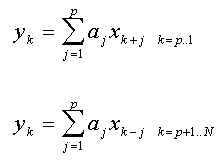 Smooth Loess - smooth data using bivariate Loess algorithm
 Smooth NURBS - smooth data on grid or sparse grid using non-uniform rational B-splines
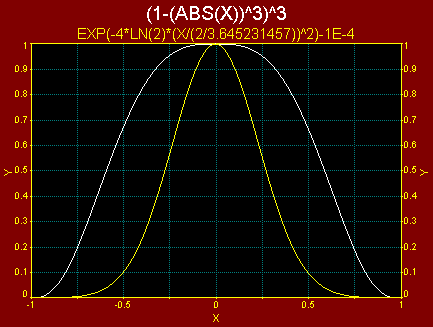 Fill Sparse Grid - non-parametric scattered data interpolation to complete XY grid
 Interpolate Uniform Grid - non-parametric scattered data interpolation to generate XYZ data on an arbitrary XY grid
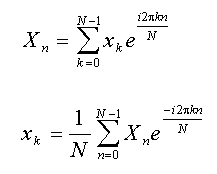 Estimate Gridded Data - non-parametric estimation for data on an XY grid
 Estimate Scattered Data - non-parametric estimation for data scattered in the XY plane
Process Toolbar

 Surface-Fit All Linear Equations, Non-Linear Equations, and UDFs
 Surface-Fit All Linear Equations and UDFs
 Surface-Fit Simple Equations and UDFs
 Surface-Fit Plane by Least Squares and by Three Robust Procedures
 Surface-Fit All Polynomial Equations and UDFs
 Surface-Fit All Rational Equations and UDFs
 Surface-Fit All Polynomial and Rational Equations and UDFs
 Surface-Fit Peak Equations and UDFs
 Surface-Fit Transition Equations and UDFs

 Surface-Fit Custom Equation Set and UDFs
 Enter or Edit Any or All of TableCurve 3D's 15 UDFs

 Begin the TableCurve 3D Review Emphasizing Surface-Fit Graph


