Automation
TableCurve 3D's automation facility enables the automatic processing of large numbers of data sets in the same manner as the one currently being processed. Reports are either streamed to MS Word or written to an RTF file. Numeric results are output to MS Excel.
Invoking TableCurve 3D's Automation
To use TableCurve 3D's automation for existing data, the data sets must first be in an Excel spreadsheet file. If the data are to be acquired and processed in real-time, you must first author a custom DLL.
The automation is initiated by the Automate button in the following procedures:


Automation Methodology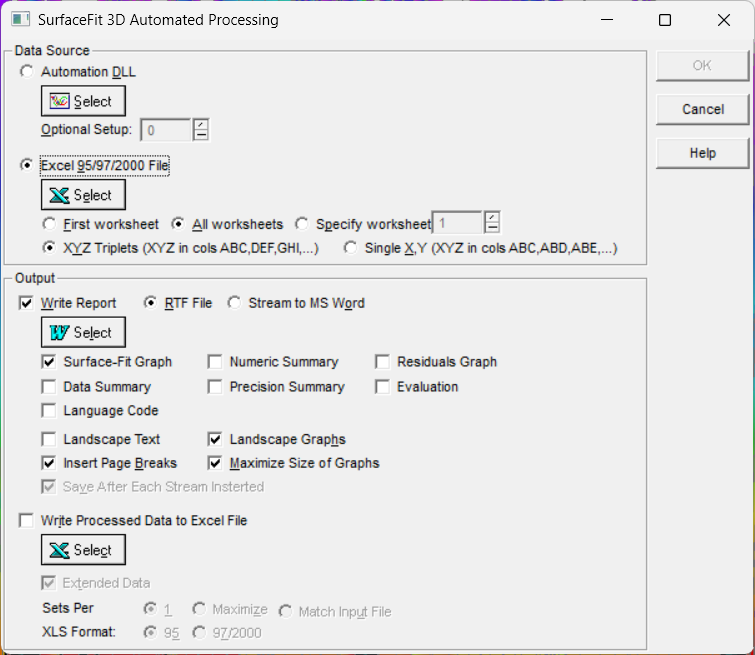
The automation uses a common interface that is largely independent of the procedure of interest. In order to initiate automated processing for any of the above supported procedures, you must first import a representative data set, select the procedure desired, and then choose the algorithm and adjustable settings for this procedure. Once you have processed this initial data set, the automation can be invoked to automatically process additional data sets.
You may find it useful to import the first data set in the series intended for automation. Note that certain procedures are very general and can be applied to widely varying data sets, such as smoothing procedures. Other procedures require similar data sets in order to generate meaningful results.
With the exception of surface-fitting, all of the adjustments applicable to the automation are in the procedure being automated.
For surface-fitting, the fit adjustments are determined by the Surface-Fit Preferences option. Although a large number of equations may have been fitted to arrive at the currently selected equation, the automation fits only this current equation active on the current graph. If you want to automate the fitting of a number of models to the same series of data sets, you must repeat the automation for each equation of interest.
Data Source
The data source can be one of the following:
- Data streams returned using a TableCurve 3D format automation DLL
- Data sets stored in an Excel 95 or Excel 97/2000 format file
Automation DLL
 TableCurve 3D offers the means to acquire data using a DLL interface. The program ships with sample DLLs that simulate different data acquisitions. These DLLs and their C/C++ source code is in the Automation subdirectory. These files should be used as templates for creating automation DLLs.
TableCurve 3D will optionally pass a setup value from 0 to 255, allowing up to 256 acquisition schemes, sampling, and so forth from a single DLL.
Each data stream acquired can be up to 16384 points in length.
The Test Automation DLL option in the Help menu can be used with your automation DLL to generate Excel worksheets.
Excel XP/2000/97/95 File
 If the data source is an Excel 95 or 97/2000/XP file, you must specify the file, and whether to process the first sheet, all sheets, or a specified sheet. You must also specify how the data are stored. Two formats are supported. For XYZ Pairs, the first X must be in column A, the first Y in column B, the first Z in column C, the second X in column D and so on. For Single XY, the X values must be in column A, the Y in column B, the first Z in column C, the second Z in column D, and so forth. Typically the main data titles will be in the first row, the X, Y and Z titles in the second row, and the data will begin in the third row.
Excel 95 is limited to 16384 rows while Excel 97/2000/XP supports up to 65536 rows. If the first two rows are used for titles, the data length limits will be 16382 and 65534.
The TableCurve 3D main window displays the amount of free RAM available. If this quantity is sufficient, TableCurve 3D will load the full Excel file into memory, resulting in very fast import of each successive data set. If the free RAM is insufficient, TableCurve 3D will need to read each set from disk, a significantly slower operation, especially with large files.
Be sure the Excel file you are processing is not currently open within Excel.This not only consumes memory, but requires that TableCurve 3D make a temporary copy of the file on disk before each import.
TableCurve 3D reads Excel files directly, without using OLE automation. There is no need for MS Excel to be open, and TableCurve 3D does not launch it.
The Test Automation DLL option in the Help menu can be used with one of the sample DLLs (or your own automation DLL) to generate large Excel worksheets for testing automation performance.
Processing
The graph(s) for the current procedure are updated as the data sets are imported and processed. Numeric information fields are also updated. This update occurs even when no export options are selected.
When the processing is underway, all options are disabled except the Reset button. The automation can be halted by clicking this button or by pressing the Space bar, Enter, Tab, End, or Esc keys.
Export
Two export options are generally available. Either or both can be selected. The first is an MS Word/RTF (Rich Text Format) file containing numeric summaries and/or graphs. The other is an Excel 95 or Excel 97/2000/XP file containing numeric data.
MS Word/RTF Export
 MS Word/RTF export is available for all options where graphs and reports are useful. If this export is available, there is a choice to stream the output directly to MS Word (Word 95, Word 97, Word 2000 and Word XP are supported), or you may write the information to a portable RTF (Rich Text Format) file.
The content available for export varies widely with the procedure. In most procedures, at least one type of graph can be selected. When an option employs dual graphs, both will be automatically written to the file. The graphs will be constructed using the current plot settings and sizes, and inserted as Windows Metafiles. You can select landscape or portrait mode for the graphs. The dimensions of the graph within the file will based upon 96 pixels per inch. Note that beyond a certain size, the graphs utilize full landscape or portrait pages.
Numeric reports are included using the current options set for them. For RTF files, you can independently select landscape or portrait mode for the inserted text. For MS Word streamed export, a single orientation applies to both graphs and text.
Note that RTF files with graphs can grow quite large when processing an appreciable number of data sets. Be certain you have sufficient hard disk space on the drive where the exported RTF file is being written before initiating an automation session. An RTF file is written directly to disk, without using OLE automation. There is no need for MS Word to be open, and TableCurve 3D does not launch it.
MS Word DOC files are more efficient than RTF files in storing graphs. This is particularly true of the newest releases which compress metafile information.
The Review Preferences option contains the Use A4 as Default Paper Size option. By default, MS Word and RTF export is formatted in 8.5 x 11 size. If you want the export formatted for an A4 paper size, you must check this preference. The A4 preference also applies to the MS Word and RTF export option.
Excel Export
 All procedures supporting automation offer Excel export. Some offer extended numeric data while others write only basic three column data. If Extended Data is available, you may elect to disable it and write only the basic data. For the Surface-Fit Review, the export is only available in an extended format.
The export can be written using one worksheet for each data set, packing as many data sets as possible per worksheet, or if possible, the export will be written to match the input Excel format. Both Excel 95 and Excel 97/2000/XP formats are supported. Excel 95 is limited to 16384 rows while Excel 97/2000/XP's limit is 65536 rows. TableCurve 3D limits the number of sheets written to 255. The automation will be automatically closed if this sheet limit is reached.
The last two columns of each worksheet are not used, in case you wish to average data across all columns on a given sheet. Similarly, the 256th sheet is reserved in case you want to average data across sheets.
Just as with the RTF export, Excel files can grow quite large, especially when large amounts of numeric information are written for each data set. Again, be certain you have sufficient hard disk space on the drive where the exported Excel file is being written before initiating an automation session.
The Excel file is not immediately written. For optimum real-time performance, the information is first written in a streamlined binary format that uses very little processing time. When the automation is finished, this temporary binary file is converted to an actual Excel file. Although the Excel file is written directly, without OLE automation, this may still require some time if very large files are involved. You may work within Excel while an automation session is underway.
Background Automation
TableCurve 3D's automation is designed primarily for unattended processing of large numbers of data sets. To run an automation session in the background, while working on foreground tasks in other applications, simply minimize TableCurve 3D's current or main window. In WindowsXP, Windows 2000, and Windows NT v4, once an automation session is underway, you may want to launch the Task Manager, right click on TableCurve 3D, and set the process priority to low. This should maximize foreground performance.
Keep in mind that the Excel data source automation will be most efficient when sufficient RAM exists to load the full Excel file into memory. Many applications, such as MS Word and MS Excel, consume large amounts of RAM. Windows itself consumes a surprisingly large quantity of RAM. Typically, unless you have 64 Mb of RAM or higher, Excel data source automation will suffer if the Excel file is large and other major applications are running concurrently.