Graph Copy
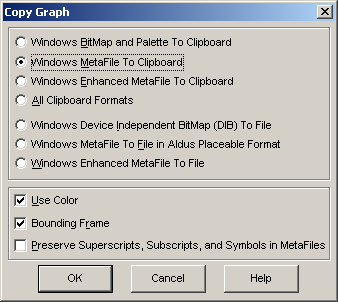
The Copy option offers various methods for copying the current graph to the clipboard or saving the graph image to disk. These images will either be bitmaps or metafiles.
In the case of clipboard graphs, you will most often use a Paste or Paste Special item in the Edit menu of the software importing the image. You may wish to paste a TableCurve 3D surface-fit graph directly into the Excel, Lotus Windows, or Quattro Pro Windows spreadsheet containing the data from which the fit was generated.
Bitmaps
A Windows bitmap is a raster image consisting of pixel-type information. A bitmap will accurately retain the positioning of all elements within the graph and its titles. The main drawback to using a bitmap image is the significant loss of resolution that occurs when the program importing the graph stretches, shrinks, or otherwise scales the image. This is especially true for an aspect ratio that differs significantly from the original image.
Metafiles
Windows metafiles consist of a series of Windows graphics vector instructions which are intended to reproduce the original image. Windows Metafiles offer superior resolution and scaling, although the program importing the image may have difficulties in properly rendering text elements such as superscripts, subscripts, and symbols in their proper positions.
TableCurve 3D offers three options for copying the current graph to the Windows clipboard:
Windows Bitmap and Palette to Clipboard
This option copies the current graph in its current size to the Windows clipboard as a device-dependent Windows bitmap (DDB). Also copied to the clipboard is the palette used within the bitmap.
For a larger or smaller bitmap, simply resize the window containing the graph.
If your system is set to 256-color (8-bit) video, you may encounter problems with TableCurve 3D's standard bitmaps when importing gradient and shaded plots into other applications. Although TableCurve 3D places the palette within the clipboard, the importing program may not read or honor such. Many programs in 256-color mode set their own predefined 256 color set, and the colors within the TableCurve 3D graph are forced to a closest match. When this occurs, you can expect to see TableCurve 3D's 32-color gradients reduced to about a half-dozen colors and the 24 color spectrum plots reduced to about a dozen colors. Other programs in 256-color mode will display TableCurve 3D's colors properly, but will use dithering.
In 65536 (16-bit) color mode, and in the 24-bit and 32-bit true color modes, applications should properly render the colors in TableCurve 3D's bitmaps.
Windows Metafile to Clipboard
This option copies the current graph, initially specifying the current graph dimensions, to the Windows clipboard in the native Windows Metafile format. Although a metafile is intended to be scalable, its header contains a default size which will match the current dimensions of the graph. Some programs will place a metafile using these default values, others will do so within a frame created by the user, and still others will use a default frame which you must then rescale as desired.
How a given program handles a metafile is often more variable than how it handles a bitmap. If you are unsuccessful in pasting the clipboard metafile image into your software, first check the Windows Clipboard Viewer to insure the metafile image is actually there. If so, and if your software supports WMF file import, you should try importing a disk-based metafile.
Windows Enhanced Metafile to Clipboard
This type of metafile is offered for 32-bit applications which accept this 32-bit metafile format.
There are three file-based options similar to the clipboard options:
Windows Device Independent Bitmap (DIB) To File
This option saves the current graph in its current size as a device-independent Windows bitmap. The file will have a default DIB extension.
The main difficulty you are likely to encounter with TableCurve 3D's DIB bitmaps will be with palette variations when attempting to import gradient and shaded plots into other applications. In 256-color mode, the DIB contains a color table specifying the palette colors. In higher color modes, the DIB's data consist of actual RGB values. How applications handle the DIB color information is quite variable. Some will modify their palette, others will force the colors into a best match with their own palette, and still others will ignore the color information altogether.
Windows Metafile to File in Aldus Placeable Format
This option produces a disk-based Windows Metafile that is "placeable" and is based upon the Aldus specification. This is the Windows Metafile format preferred and sometimes required by high-end desktop publishing and drawing software. The default file extension for Metafiles is WMF.
Windows Enhanced Metafile to File
This type of metafile is currently available only on Windows XP, Windows 2000, and Windows NT v4. The default extension is EMF.
Color
To copy the graph as a Page-White image, simply uncheck the Use Color item.
Bounding Frame
When the Bounding Frame box is checked, there will be a thin-box at the boundaries of the image.
Preserving Formatted Text in Metafiles
Windows contains no intrinsic support for inserting subscripts, superscripts, or changing to a symbol font in the middle of a text string. As such, a title containing formatted text requires multiple text output instructions. When a metafile image is placed and scaled, the software importing the file may not preserve the proper character spacing across the separate text segments. If this occurs, try initially placing the image in the aspect ratio of the original image. If this fails, you should uncheck the Preserve Superscripts, Subscripts, and Symbols box.