3D Animation
The Animate option is available to TableCurve 3D's principal graphs. It is separate from the Animation and Animation Setup in the main window graph.
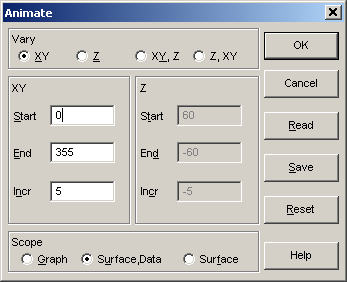
After selecting an animation type and the pertinent view angles, a separate animation graph window is presented. Once the animation is started, the program will display the views in a continuous succession until the animation is halted. When an animation is in progress, all other TableCurve 3D functions are suspended, although you may work with other applications in the foreground and maintain the animation in the background.
Animation Type
There are four animation options. You may animate only the XY view angle by selecting the XY option or only the Z view angle by selecting the Z option. You may also animate both view angles. The XY,Z selection will animate all of the Z angles while stepping through the XY angles. The Z,XY option will animate all of the XY angles while stepping through the Z angles.
Animation Angles
You must specify the Start, End, and Increment for type of angle being animated. Entries for the XY angle must be between 0 and 360 degrees and those for the Z angle must be between -90 and 90 degrees. The increment must be non-zero. All values must also be integers.
Animation Scope
The Graph option animates the graph exactly as it is being currently rendered. This means titles, labels, backplanes, and contours will be animated if present. The Surface,Data option animates only the 3D surface and the data points. The Surface option animates only the surface.
The Surface,Data and Surface options are identical for graphs that contain only a surface or only data points. In both instances, titles, labels, backplanes, and contours are removed. The animation thus consists of only the basic surface or data.
Saving and Reading Animation Files
Although the current animation specifications are saved across sessions, TableCurve 3D stores only one set of animation parameters for all of the program's graphs. If you wish to regularly use more than one animation sequence within the program, you will wish to Save the animation information to a disk file. Files are saved in binary with [.ANI] extensions. To read previously saved animation parameters, use the Read button.
Default
The Reset button restores a default where only the XY angle is animated at 30 degree increments.
Animation Graph
When OK is chosen, the initial animation graph is presented.
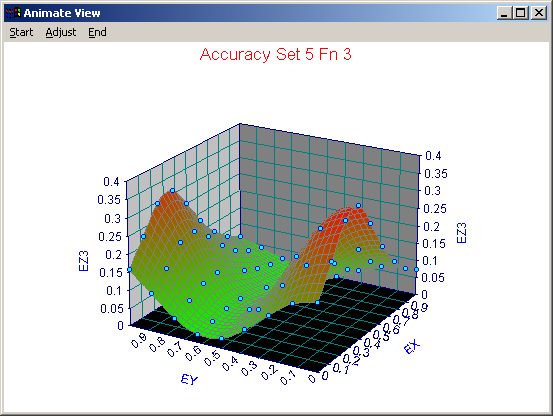
This is a window whose dimensions are saved across sessions. Although you may adjust the size of this window when the animation is in progress, it is easier to do so before the animation begins. To initiate the animation, select the Start item in the menu. The Adjust item is used to redisplay the animation dialog while the animation window is displayed. The End item is used to exit the animation sequence. Once the animation begins, only a Stop menu item is available. You can pause and resume the animation at anytime using the Start and Stop items.
The animation will generally proceed as fast as the CPU and video processors can generate and render the various frames, although an upper limit of 10 frames per second is built into the animation.
When an animation graph is in motion from within a procedure, all other TableCurve 3D operations are suspended. You may, however, work in other applications with the animation visible and continuing in the background.