Smooth NURBS
The Smooth NURBS option in the Table menu offers the intrinsic smoothing of Non-Uniform Rational B-Splines.
Most smoothing methods at a high power of smoothing can remove all trace of subtle data features. NURBS, on the other hand, tend to preserve some measure of each feature apparent in the original data regardless of the order used. As such, a NURBS is a very conservative smoothing mechanism.
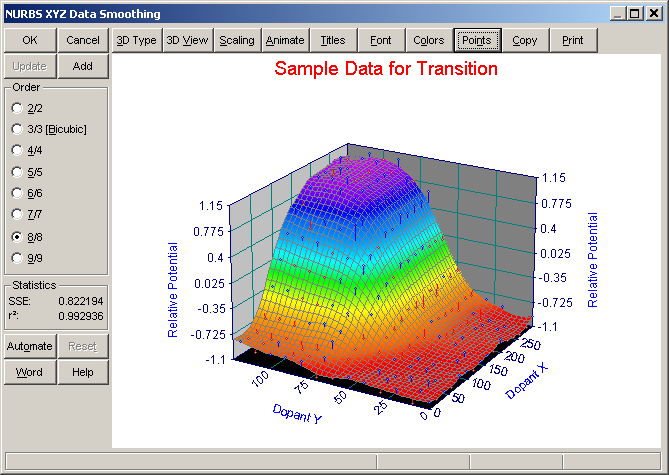
This procedure is best used with data on a full or sparse grid. For pure scattered data, the Loess smoothing procedure is recommended. The problem with scattered data occurs when two X,Y data locations are nearly coincident but have significantly different Z values. The effectiveness of NURBS as smoothers relies on the x and y distances between the points (a NURBS is a distance-weighted B-spline).
If a regular grid is absent, the Renka I scattered data estimation procedure is automatically used to complete what is assumed to be a sparse grid. For complete control of this process, the Fill Sparse Grid option can be used prior to invoking this smoothing option. If the filling of this sparse grid would result in more than 16384 grid nodes, the data presented to the NURBS will be a fully interpolated 25 x 25 uniform grid. For fully scattered data, it may be preferable to use the Interpolate Uniform Grid option prior to NURBS smoothing since this will assure a uniform x and y spacing between all of the data.
Smoothing Adjustments
The NURBS algorithm contains only a single adjustment. The Order can be varied from 2 to 9, provided sufficient discrete x and y data values are present. The order in the x and y dimensions are equal. The bicubic NURBS (order 3/3) is the default. In a NURBS, the higher the order, the greater the influence of neighboring points. The minimum smoothing will occur with the biquadratic spline (order 2/2). The maximum smoothing will occur with the binonic spline (order 9/9).
Statistics
The SSE (sum of squares due to error) and r2 (coefficient of variation) are reported for the overall fit. The coloring of the data points by SE (standard error) relies on the assignment of degree of freedom based upon the order of the NURBS. This may furnish some evidence of outliers or possibly data that have been adversely impacted by the smoothing.
Surface Rendering
The surface is rendered by a bicubic B-spline procedure. This is informational only within this option.
Graph Controls
This option offers the common TableCurve 3D graph controls:
Add
 The Add button adds a NURBS smoothing object to the currently selected XYZ data object in the TableCurve 3D explorer. A NURBS smoothing operation can be added to any item containing XYZ data, including other smoothed objects.
Update
If a NURBS smoothing item is currently selected and the main graph is clicked, the Update button will be enabled. This updates the smoothing with the current settings as well as updating all graph customizations.
Batch Automation
The Automate button activates the TableCurve 3D Automation facility. This allows unattended processing of large numbers of data sets. The data sets can be consolidated in an Excel file or acquired using a DLL. The graphs and reports can be exported to a Microsoft Word/RTF file, while the processed data can be exported to an Excel 95 or Excel 97/2000/XP file.
If an Automation session is in progress, the Reset button can be used to terminate the automated processing.
MS Word/RTF Export
The Word button is used to save the current graph to either a MS Word file or a portable RTF (Rich Text Format) file. The graph is inserted into the file as a Windows metafile.
Preserving the Current Smoothing Settings
Exit with OK to update the smoothing settings. These values will be reflected the next time the procedure is entered. To discard the current settings, close the procedure with the Cancel button. Note that the Add or Update options must be invoked before closing the dialog in order for the smoothing to be added to the current notebook.