Fill Sparse Grid
The Fill Sparse Grid option in the Non-Parametric menu is generally used for grid-based data with incomplete elements, as occur with incomplete sampling, from the removal of outliers, and from the deliberately sparse design of experiments matrices. This option may also be of use in furnishing data points which constrain parametric fits which are unstable in regions where data are lacking.
This option creates an XYZ interpolation object in the TableCurve 3D notebook. Much of the capability of the Estimate Scattered Data option is included.
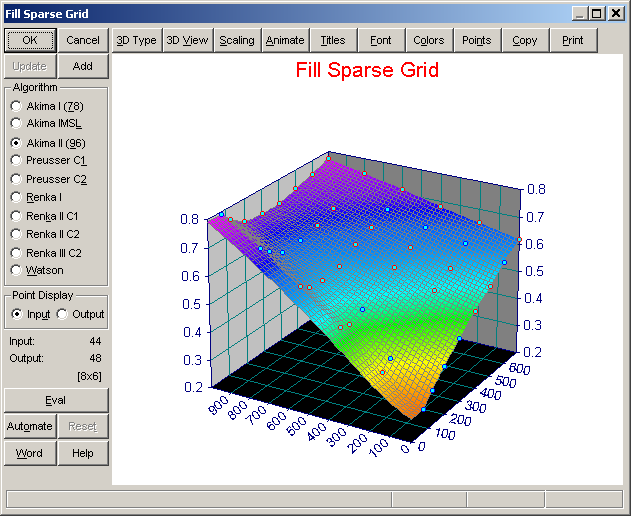
This procedure performs no augmentation when the data are already on a regular grid. In this instance, the algorithms and point format will be grayed. If a point is subsequently toggled off, the interpolation is used and the selections are activated.
The output dimensions of the x and y grid are determined by the number of unique x and y data values. The interpolation is performed only at those positions in the grid where data are missing. If the grid formed by the count of unique X and unique Y values would be larger than 16384 elements, the algorithms default to a 25 x 25 uniform grid interpolation and the original data values will not be used.
Note that the Estimate Gridded Data option will automatically fill a sparse grid using the Renka I procedure for the purpose of accommodating the regular grid requirements of its algorithms.
Algorithms
Ten different options are available:
- Akima I (78)
- Akima IMSL
- Akima II (96)
- Preusser C1
- Preusser C2
- Renka I
- Renka II C1
- Renka II C2
- Renka III C2
- Watson
Interpolation
The algorithms are strictly interpolation routines whose surfaces pass exactly through the data. No data smoothing occurs. Extrapolation may occur to fill in the corners or edges of the rectangular grid. The grid is automatically specified by the unique x and y values in the input data.
Output Grid
The number of elements in the output grid are automatically determined by the input data.
Point Display
The display can consist of either the Input data or the Output (augmented) data. To test interpolation at an existing data point, note the z value that appears in the status area when the mouse is over the point. Left click on the point to turn it off and then change to the output data and observe the z value that is interpolated in this point's absence.
Eval Spline
The output data set is automatically fitted to a bicubic B-spline for rendering the surface. The B-spline's Evaluation procedure is also available for testing interpolations.
Graph Controls
This option offers the common TableCurve 3D graph controls
Add
 The Add button adds a Fill Sparse Grid object to the currently selected XYZ data object in the TableCurve 3D explorer. This operation can be added to any item containing XYZ data, although it is meaningful only when a full XY grid is not already present.
Update
If a Fill Sparse Grid item is currently selected and the main graph is clicked, the Update button will be enabled. This updates the interpolation with the current settings as well as updating all graph customizations.
Batch Automation
The Automate button activates the TableCurve 3D Automation facility. This allows unattended processing of large numbers of data sets. The data sets can be consolidated in an Excel file or acquired using a DLL. The graphs and reports can be exported to a Microsoft Word/RTF file, while the processed data can be exported to an Excel 95 or Excel 97/2000/XP file.
If an Automation session is in progress, the Reset button can be used to terminate the automated processing.
MS Word/RTF Export
The Word button is used to save the current graph to either a MS Word file or a portable RTF (Rich Text Format) file. The graph is inserted into the file as a Windows metafile.
Preserving the Current Interpolation Settings
Exit with OK to update the procedure's settings. These values will be reflected the next time the procedure is entered. To discard the current settings, close the procedure with the Cancel button. Note that the Add or Update options must be invoked before closing the dialog in order for the interpolation to be added to the current notebook.