Import Digital Filter
The Digital Filter option is one of the special import options included in the Import Special menu list in the File menu.
The Set Digital Filter and Apply Digital Filter options are also available in the right click popup menu of non data and data nodes in the TableCurve 3D Explorer.
All of the supported data source formats can be used with the Digital Filter option. Use this option when you wish to reduce a large number of data points to a more manageable size for fitting, or when your data set exceeds the program's maximum of 16384 points.
Filtering
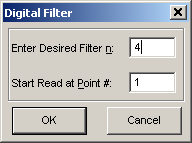
The Digital Filter option specifies that every nth point in the import stream will be added to the current data table. The n for the filter can range from 1 to 999 and the start point can be any within the extent of the data. Note that setting n=1 and starting at point 1 is the same as importing all data.
As an example, digitally filtering a 10,000 point data file with n=20 and beginning with the first data point, would result in a data set containing 500 points. The information in the 9500 excluded points is not used.
XYZ Data Already Specified
XYZ data that has been specified can be replaced with a filtered set, a filtered set can be reset to where all points are present, or a filtered set can be replaced with a filtered set using different settings.
- Be sure the XYZ data item is selected in the TableCurve 3D Explorer.
- Right click the data item and select Apply Digital Filter from the popup menu. Set the n for the filter and the start position in the data sequence. To reset to where all points are present, set n to 1 and the start position in the data sequence to 1.
- The filter is automatically applied and the data is shown in the main graph. A warning is first given when previous filter settings will be cleared. If the XYZ data contains more than the program's 16,384 size limit, the XYZ stream is truncated.
XYZ Data Not Yet Specified
For data greater than 16,384 in length, the above approach can be used on the truncated data node to create a full range filtered set. It is also possible to produce the filtered set directly. This must be done before the XYZ data is specified.
- Select the uppermost item in the tree, the notebook, in the TableCurve 3D Explorer.
- Select the Import Special and Digital Filter from the File menu. Set the n for the filter and the start position in the data sequence.
- If the data source has not yet been added to the notebook, add the data source using the Import Data Source option. If this is an XYZ format file, the filter is automatically applied and the data are shown in the main graph.
- If the data source added is a multicolumn format, such as an Excel file, specify the X, Y, Z columns using the Specify XYZ Data Item option. The filter is applied automatically and the data are shown in the main graph.
- The filter settings are applied only to the next data set imported or specified.
Primary Data
Note that each primary data item contains a digital filter specification. By default, all data specifications use a n=1, start=1 for the digital filter. Unlike most data operations within TableCurve 3D, applying a digital filter does not produce an additional item in the notebook. These filter settings are regarded as an intrinsic property of each data item specified in the notebook.