Graph Custom Titles
The Basic Titles, which consist of a main, X, Y, and Z title, are used within the default titles provided in the various graphs. The Custom Titles option offers the means to extensively customize the default titles used within a graph. This option is initiated either by a Titles button or by a Custom Titles menu item. You may also open the Custom Titles dialog by clicking the mouse above the graph in the titles area. This option offers the means to add or edit up to five titles as well as the X, Y, and Z title. This option also offers the means to control the sizes of these titles. You will need to use this option if you wish to add superscripts, subscripts, or special upper ASCII or symbol characters to the titles. The custom titles can be saved to disk for subsequent use.
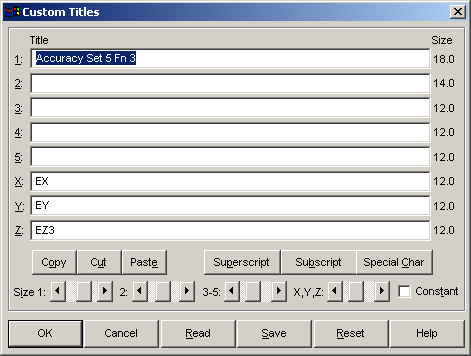
Titles Entry
You may enter up to 5 titles for display above the graph. The titles presented will either be the default titles for the graph or the custom titles currently active. To reset the defaults, use the Reset button. If you will be reading in a custom title file, you may wish to use the Cut or Copy button to place one of the titles in the clipboard before the previous titles are read. You would then Paste this over the previous title not pertinent to the present graph.
Subscripts and Superscripts
To subscript or superscript a portion of a title, first enter the text and then highlight the portion of text you wish to superscript or subscript. When you press the Subscript or Superscript button, the appropriate control codes are inserted into the text. Nested superscripts or subscripts are ignored.
Special Characters
If you wish to add a character from the upper 128 characters of the current font, or from the Symbol font, place the cursor at the desired location where you wish to have the special character inserted. When you press the Special Char button, you will be presented with a display of the available characters. Select the character desired and it will be inserted, along with the appropriate control codes, into the title text.
Sizes
You may set the font size of the main title, the secondary title, the third-fifth titles, and the X, Y, and Z titles. The font sizes are shown to the right of the titles. The scroll bars to adjust these sizes are below the titles. If you wish to have all fonts an identical size, check the Constant box and adjust only the first scrollbar to the size desired. Note that if your font sizes are too large, one or more of the titles may not be displayed.
Saving Titles
The Save item saves to disk all of the information in the Custom Titles screen. These files have default [.TTL] extensions. These are binary files which can only be generated from within the program. Custom titles are not saved across sessions. You must explicitly save a set of custom titles if you wish to use them again.
Recalling Titles
The Read item will read previously saved custom title information into the current graph. For Surface-Fit and Residuals graphs, the equation, goodness of fit statistics, and coefficient titles will be automatically updated if they were originally saved without modification. Note that if you modify and save custom titles containing equation information, these titles may not be updated and could contain incorrect information relative to the present equation. If the second title begins with "Rank" it will be automatically updated for the current equation. If the third title begins with "r2=", it will be updated. If the fourth title begins with "a=", the fourth and fifth titles will be automatically updated. If you wish to use one of the default titles for the current graph in place of a title that will be read, use Cut or Copy to place that title in the clipboard, Read the title file, and then Paste it into or over the title not pertinent to the current data or fit.
Scanning Surface-Fit Equations
Custom titles are preserved when scanning surface-fit graphs. Titles for the current equation, its goodness of fit statistics, and its coefficients will automatically replace the corresponding custom titles if the second custom title begins with "Rank", the third custom title begins with "r2=", and the fourth custom title begins with "a=". If you modify the initial characters of these titles, they will be considered constant strings and as such equation information contained within them will not reflect the current equation being scanned. If you wish to change the significant figures displayed in these titles, use the Preferences item in the File menu of the Surface-Fit graph.