MS Word File/RTF Export
This option is used to export graphs and reports to Microsoft Word and other word processors.
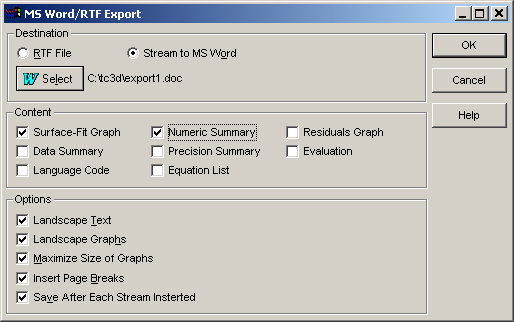
Destination
The output can be streamed directly to Word 95, Word 97, Word 2000, or Word XP by checking the Stream to MS Word box. This option will not be available if MS Word is not installed on your system. This option automatically opens Word and places the specified content within the document that is created.
The RTF File option specifies that a Rich Text Format file be written to disk. This format can be imported by all major word processors and by Wordpad, an RTF editor that ships with Windows.
Content
Each procedure will have its own content items. Select the items you wish to include in the export. When multiple items are available, the sequence of exported items is fixed.
Options
The Landscape Text and Landscape Graphs checkboxes are used to specify landscape rather than portrait mode for numeric reports and graphs. If the Stream to MS Word option is used, text and graphs must share the same orientation. Mixed portrait and landscape mode is available only for RTF file export.
The Maximize Size of Graphs option will automatically use the full available page area. For landscape mode this is the entire page. For portrait mode, this uses approximately half of the page. When this option is unchecked, the size of graphs will be proportional to the size of their windows in TableCurve 3D.
The Insert Page Breaks separates each report or graph with a page break.
The Save After Each Stream Inserted option will save the Word document after each item is inserted.
The Review Preferences option contains the Use A4 as Default Paper Size option. By default, MS Word and RTF export is formatted in 8.5 x 11 size. If you want the export formatted for an A4 paper size, you must check this preference. The A4 preference applies to this MS Word and RTF export option and also to all reports generated using the automation facility.