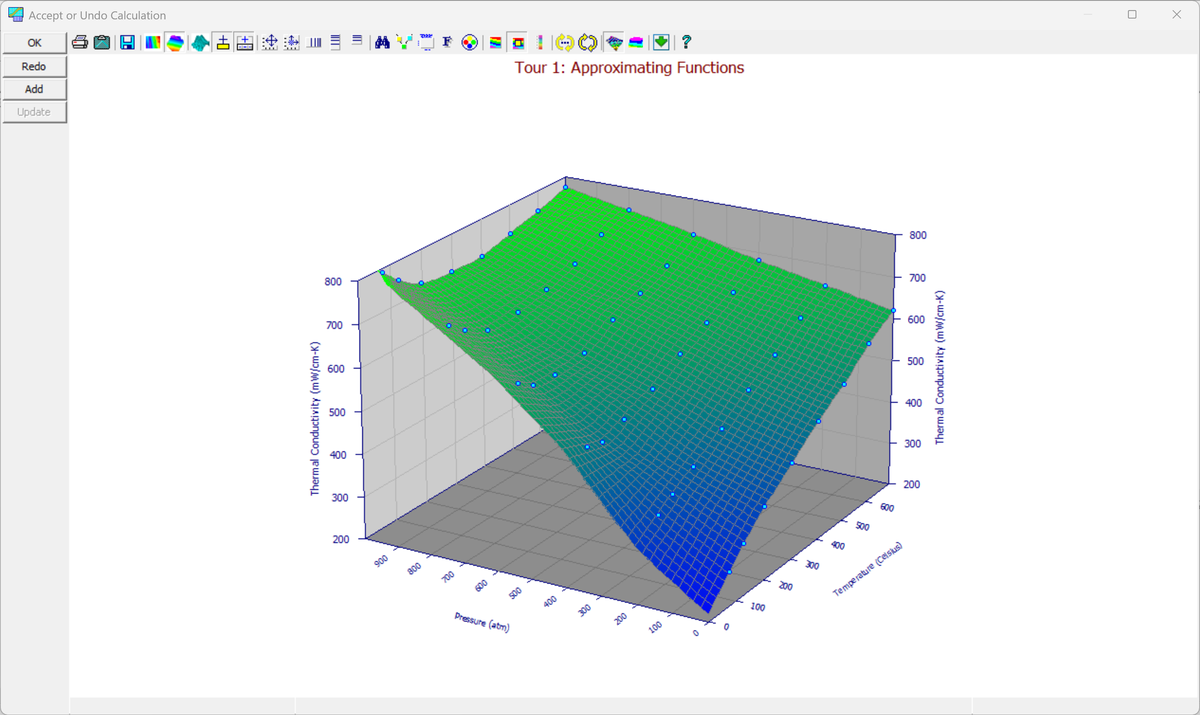
Undo Graph
The Undo Graph operation displays a graph reflecting the changes made by applying a Calculation. You will have an opportunity to inspect the modified data and to either accept or undo the changes.
Options
The Data Graph options include adjusting the 3D Graph Type, 3D View Options, Animating the graph at a succession of view angles, modifying the Graph Colors and selecting a Graph Point Format.
Redo and OK
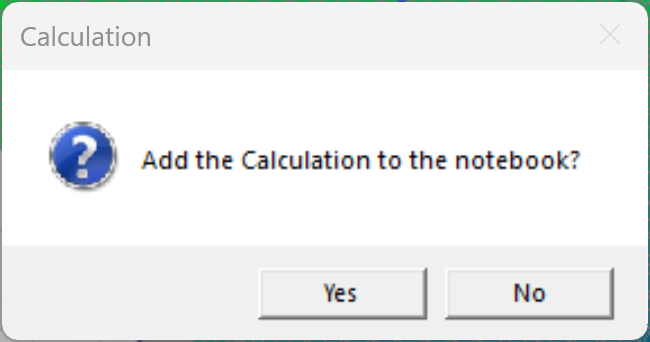
Click Redo to return to the Calculations dialog and change the expressions. Click OK when you are satisfied: TableCurve Studio asks Add the Calculation to the notebook? Click Yes to add a Calculation item under the data item, or No to close without adding it. Either way, the original data is unchanged.
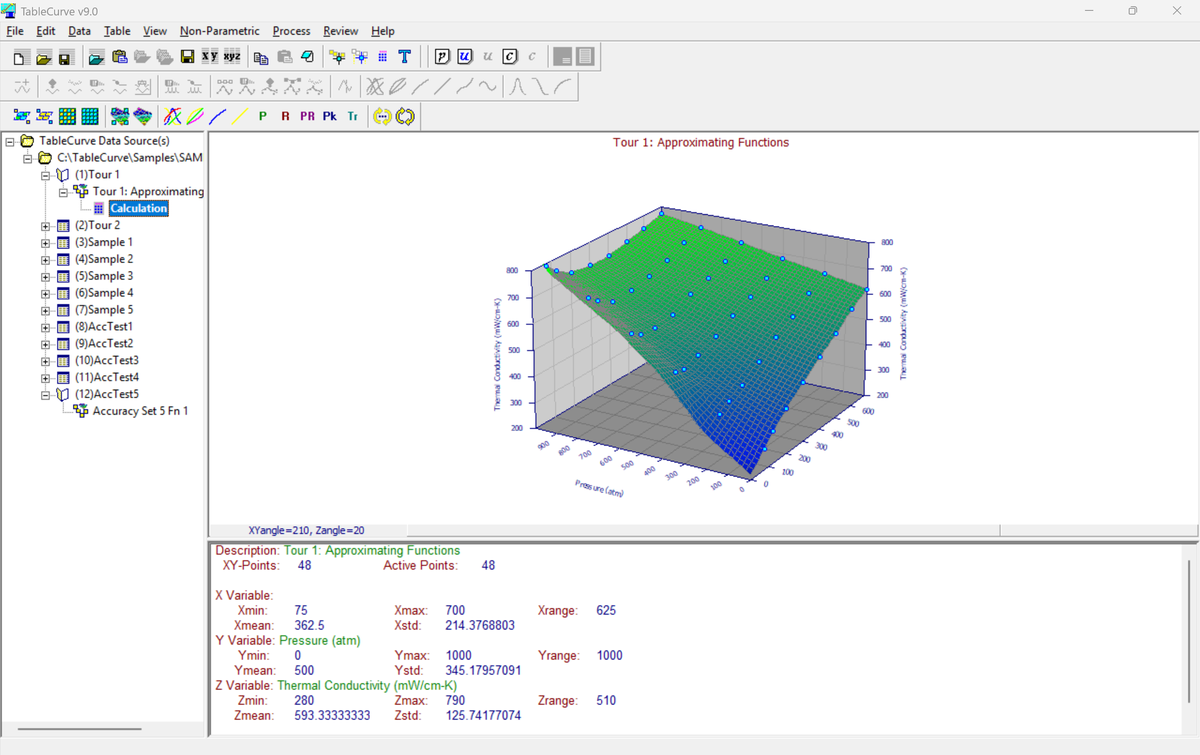
The new Calculation item appears in the notebook below the data item it transforms:
Add
 Use
the Add option to accept the modifications and add a data item
reflecting the calculation to the current notebook.
Use
the Add option to accept the modifications and add a data item
reflecting the calculation to the current notebook.
Update
If
the currently selected item in the notebook
is a calculation, the Update option can be used to revise the existing
calculation.
For 2D (XY) Data
For a 2D (XY) fit, this step is simpler: after applying a calculation, you're shown a graph of the transformed data with just two choices, Undo (restore the original data) and OK (accept the modification) -- there's no separate Redo/Add/Update flow or notebook Calculation node to manage. If Background Thread Fitting is active, fitting starts in the background as soon as the calculation is applied.