3D Animation
Any surface graph in TableCurve Studio can be animated: the view turns through a sequence of angles so you can see every side of a fitted surface. The animation plays directly in the graph you are looking at; there is no separate animation window.
Starting and Stopping
Every 3D graph toolbar has two animation buttons:
· Start/Stop 3D Animation starts the animation with the current settings. Click it again to stop.
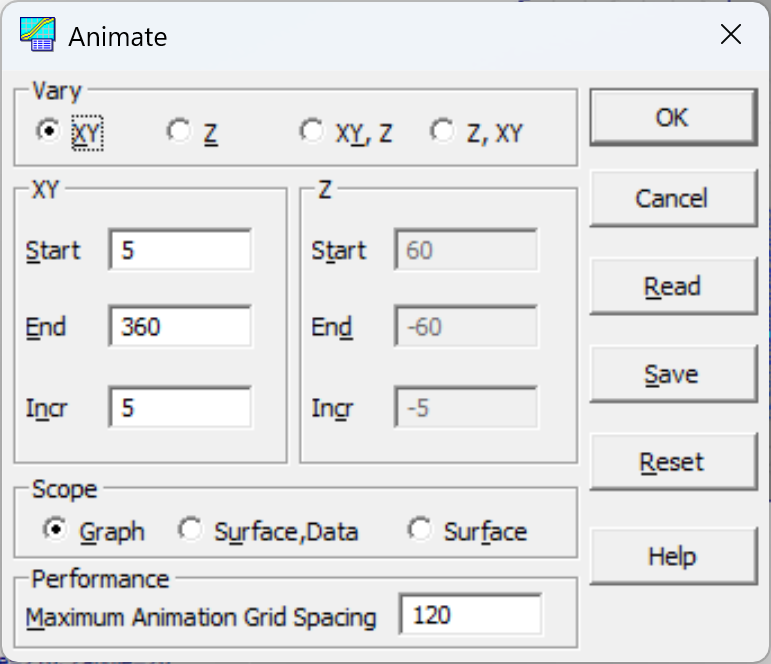
· Modify 3D Animation Settings opens the Animate dialog described below. Clicking OK in the dialog starts the animation with the new settings.
The surface graph in the main window works the same way from the View menu: Animation turns the main-window animation on and off, and Animation Setup opens the same Animate dialog for it. The main-window animation can keep running while you select different items in the TableCurve Studio Explorer.
Vary
There are four animation options. XY animates only the XY view angle, and Z only the Z view angle. XY, Z animates all of the Z angles while stepping through the XY angles; Z, XY animates all of the XY angles while stepping through the Z angles.
Animation Angles
Specify the Start, End, and Incr (increment) for each angle being animated. XY angles must be between 0 and 360 degrees, and Z angles between -90 and 90 degrees. The increment must be non-zero, and all values must be integers.
Scope
Graph animates the graph exactly as it is drawn, including titles, labels, backplanes, and contours. Surface, Data animates only the surface and the data points, and Surface only the surface. For a graph that contains only a surface or only data points, the last two are identical: titles, labels, backplanes, and contours are left out, and the animation shows just the surface or the data.
Performance
The Maximum Animation Grid Spacing field sets the largest mesh used while the animation plays. It is a mesh count, from 30 to 500 (the default is 120). If a graph's X or Y mesh count is larger than this value, both are reduced to it for the duration of the animation, and the contour grids are reduced in the same way. Redrawing a full-resolution surface many times per second would be too slow, so a smaller value gives smoother playback. The graph's own mesh is restored as soon as the animation stops.
Saving and Reading Animation Settings
The current animation settings are kept across sessions. To keep more than one animation sequence, click Save to write the settings to an .ANI file, and Read to load a saved file. Reset restores the default settings.