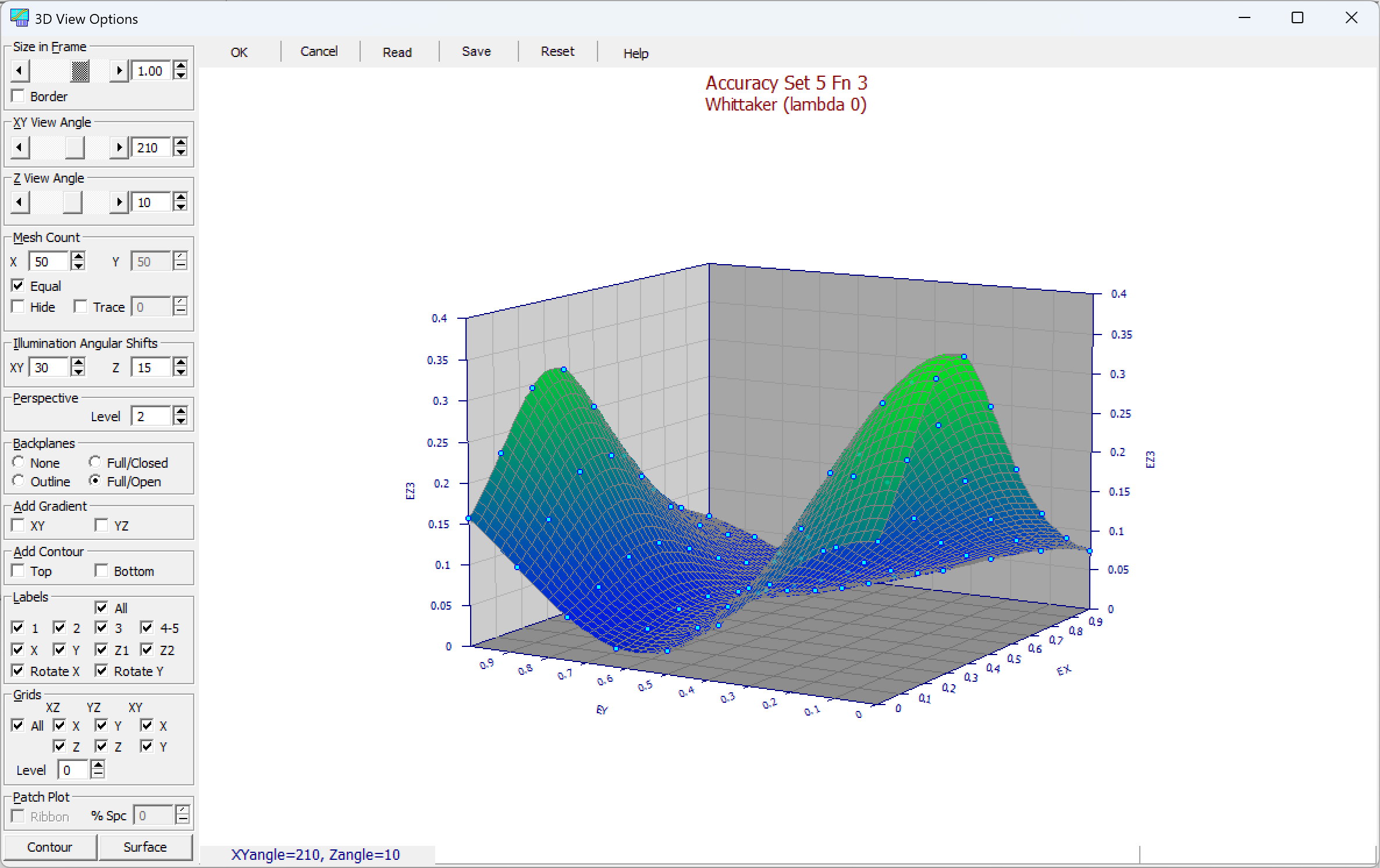
3D View
The 3D View option is available in all of TableCurve Studio's principal graphs. Changes made in this dialog are reflected directly in the main graph, which updates after a couple of seconds of inactivity to show all currently selected options. This 3D View dialog is used to set the XY and Z view angles, the size of the graph in the frame, the X and Y mesh counts, to render the mesh lines invisible, to set the XY and Z illumination angular shifts for shaded plots, to set the perspective, to select the backplane type, to add contour plots, to specify which labels and grids are included in the plot, and to set the line type for grids.
View Angles
The XY View Angle and Z View Angle scrollbars are in the options panel on the left, XY View Angle above and Z View Angle below it. The z view angle can be varied from 90 to -90 degrees while the xy view angle can be varied from 0 to 360 degrees. The default z angle is 20 degrees and the default xy angle is 210 degrees. This third quadrant position has both x and y increasing into the view. The easiest way to picture view angles is to imagine the surface and data being fixed in space and that you, as the viewer, freely move about a large boom that extends a significant distance from the surface. The view angles are then formed by this imaginary boom and its relation to the XY plane.
Size in Frame
The Size in Frame scrollbar, at the top of the options panel, controls the size of the graph in the frame; a Border checkbox next to it adds a border around the graph. The minimum size of the graph in the frame is 0.75 and the maximum is 1.25. To preserve a length reference for fitted points and residuals, graphs are not rescaled in the frame to account for the additional space often required for large z view angles. When such high z view angles are used, the graph size can be reduced using this option.
XY Mesh
This portion of the dialog is used to specify the X Mesh Count and the Y Mesh Count. The default mesh of 50 x 50 results in 2500 vertices where Z must be computed and 2401 polygons which must be filled. Note that both the vertex count and the number of polygons can be cut to one-quarter by dropping to a 25 x 25 mesh. The maximum mesh of 500 x 500 produces 250,000 vertices and 249,001 polygons. Such a high mesh offers photorealistic resolution with shaded plots and the highest possible resolution in laser printer output. When used only for printing, it is recommended that the mesh count be adjusted just prior to printing, and reduced afterward. Very high mesh counts may also assist in revealing regions of the surface that are unstable or undefined. Right clicking the spin button or edit field will offer a menu of available mesh sizes.
The Equal option allows both the X and Y mesh counts to be simultaneously set.
The Hide option is used in gradient and shaded plots. When this option is selected, the mesh lines are drawn with the color of the polygon being filled. The Trace option is an alternative to Hide, and the two are mutually exclusive — turning one on turns the other off. Rather than hiding the mesh lines, Trace darkens their color so the mesh reads as a clear outline over the surface. The percentage field next to Trace, from 10 to 90, controls how strong this darkening is.
Illumination Angular Shifts
The XY Illumination Angular Shift and Z Illumination Angular Shift options apply only to shaded plots. The light source illuminating the surface is specified relative to the viewer. Again, if you imagine the surface and data being fixed in space and that you, as the viewer, freely move about a large boom that extends a significant distance from the surface, the illumination angular shifts reflect the degree to which this source is shifted from this boom. The default shifts of 30 degrees XY and 15 degrees Z are similar to what you might find holding a flashlight to your right side, above your head, and pointed at the surface. Note that surfaces are considered transparent in shaded plots. This means that light can reach a surface element from behind as well as through other elements. Right clicking the spin button or edit field will offer a menu of available angular shifts.
Perspective
Five different levels of perspective are available from 1 to 5. These are kept modest to maintain a good reference for residuals within a fit. A value of 0 removes all perspective.
Backplanes
There are four Backplanes options. The None option does not draw any kind of XY, YZ, or XZ plane in the graph. The Outline option will draw the three backplanes, but will not fill them with color. The Full/Open and Full/Closed options draw the three backplanes and fill them with the colors specified for these planes. To change these colors, use the Colors option in the main graph and choose the Customize Colors button. The foreground of the box is not drawn in the Full/Open option.
Add Gradient
The Add Gradient XY and YZ checkboxes fill the corresponding vertical backplane with the same color gradient used for the surface, in place of its plain background color. XY colors the left backplane and YZ colors the right; both can be checked together. This has no effect on the XY (floor) backplane, and requires the Backplanes option to be set to draw the backplanes.
Contour Plots
There are two Add Contour options. The Top option draws a contour plot in the XY plane at Zmax and the Bottom option will draw a contour plot in the XY plane at Zmin. You may have both drawn if you wish. The type of contour plot drawn will depend on the type of graph currently selected. Gradient and shaded plots will have a gradient contour, the colors and their count matching those in the main graph. The standard mesh plot will have the standard line contour with a filled background while the contour for the wire plot will consist only of the contour lines.
Labels
You have full control of the Labels that are drawn in the graph. The All selection turns on and off all of the individual labels. You may individually control the display of the titles 1, 2, 3, 4-5, and the display of the axis labels X, Y, Z1, Z2. You may choose to have horizontal X and Y labels or these can be rotated with the Rotate X and Rotate Y options.
Grids
You also have full control of the Grids that are drawn in the graph. The All selection turns on and off all of the individual grids. You may individually control the grids in the XZ plane X, Z, in the YZ plane Y, Z, and in the XY plane X, Y. The density of the grid is controlled with the Level option. A level of 0 draws a simple line. A level of 1 alternates drawing a dot at every other position along the line. A level of 2 draws one dot for every 2 empty spaces. The highest level of space is 10. When the grid level is set to a level other than 0, the drawing of the grids may not be instantaneous since there is no internal Windows support (and thus no video accelerator or graphics coprocessor support) for this type of line. Since such grids are advantageous primarily in black & white printed output, you may wish to set such grids prior to printing and restore a grid of 0 once the printing is complete.
Patch Plot
The Patch Plot option is available only for graph types that support it, and is grayed out otherwise. The Ribbon checkbox switches the surface between a closed rendering and an open, ribbon-style one. The % Spc field sets the spacing between patches.\
Saving and Reading View Configurations
You may also Save the current view configuration to disk. While the program automatically saves the current view configuration for each of the program's graphs across sessions, you will need to save a view if you wish to have more than one view readily available for a specific type of graph. Files are saved in binary with [.V3D] extensions. To read a previously saved 3D view configuration, use the Read option.
Restoring Defaults
The Reset button restores the program's 3D View defaults for the current graph.
Wheel and Middle Button
Wheel up and down changes the Z elevation, and a tilt wheel left and right changes the XY rotation. Hold Shift to swap which angle the wheel drives, on mice without a tilt wheel, and Ctrl for coarse 10-degree steps. A middle click restores the default viewpoint. Precision touchpads send the same messages, so two-finger gestures behave identically.