Apply to Data Table
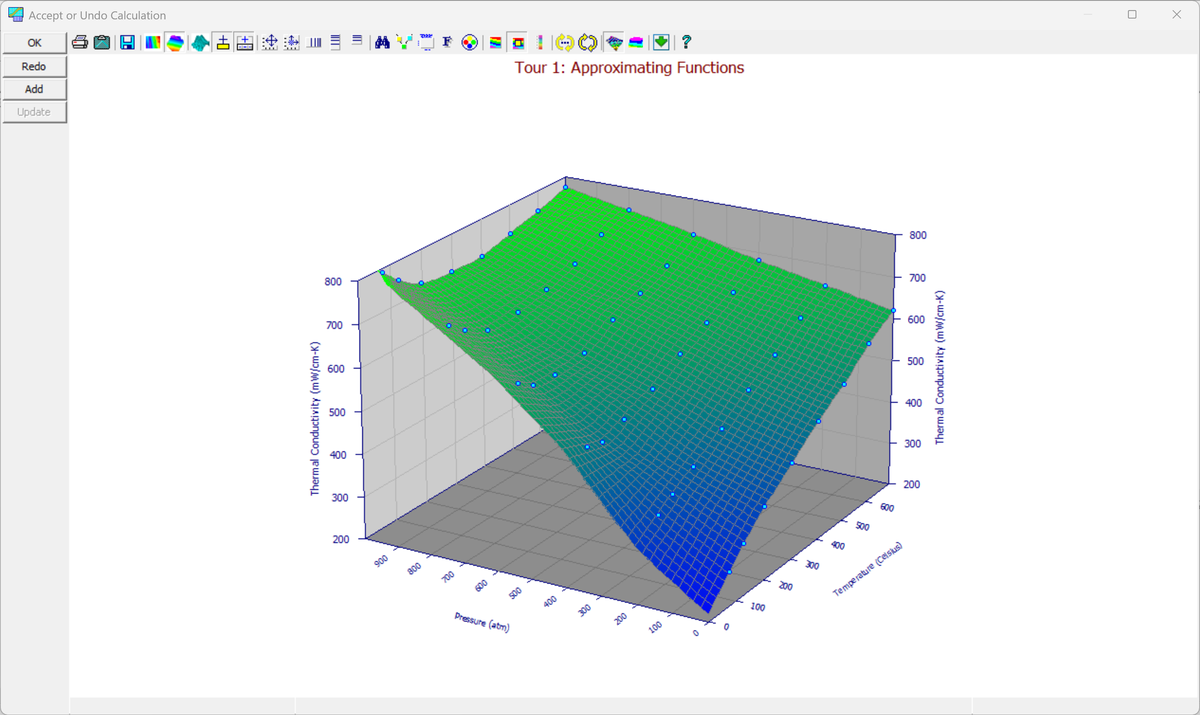
The Apply to Data Table option in the Data menu applies the current calculation to the selected XYZ data item. Use it when you entered a calculation but answered No to Apply Calculation?, or to apply the same calculation to another data item. The result is shown in the Accept or Undo Calculation window, where you can add the calculation to the notebook.
The transform follows a specific sequence. The X-calculation, if present, is first applied to the full data table. Then the Y-calculation, if present, is applied to the full table. The Z-calculation, if present, then follows. Finally the weight calculation is applied, if present, again to the full table. If you have an X calculation that references Y and a Y calculation that references X, note that the X calculation will use the original Y and the Y calculation will use the modified X.
Redo and OK
After the calculation is applied, the Accept or Undo Calculation window shows the transformed data. Its toolbar offers the usual graph options, such as the 3D graph type, view, colors, and animation. Click Redo to return to the Calculations dialog and revise the expressions, or OK to finish. TableCurve Studio then asks whether to add the calculation to the notebook.
Add
The Add button adds the calculation to the currently selected XYZ data item in the notebook, as a Calculation item. You may alternate Redo and Add as often as you like in order to add several transforms to the notebook.
Update
 If the currently selected XYZ object in the notebook is a calculation, the Update
button will be enabled. Use this to replace the existing object with the revised calculation.
If the currently selected XYZ object in the notebook is a calculation, the Update
button will be enabled. Use this to replace the existing object with the revised calculation.
For 2D (XY) Data
For a 2D (XY) fit, this is the Apply to X-Y Table option. Only the X-calculation and then the Y-calculation are applied to the full table (there is no Z-calculation step), followed by the weight calculation if present -- the same rule about an X calculation seeing the original Y and a Y calculation seeing the modified X still applies.
The accept/undo step is simpler too: after the calculation is applied, you're shown a graph of the transformed data with just Undo (restore the original data) and OK (accept the modification) -- there's no separate Redo/Add/Update workflow or notebook Calculation node. If Background Thread Fitting is active, fitting starts in the background as soon as the calculation is applied, while you're still inspecting the result.