3D Type
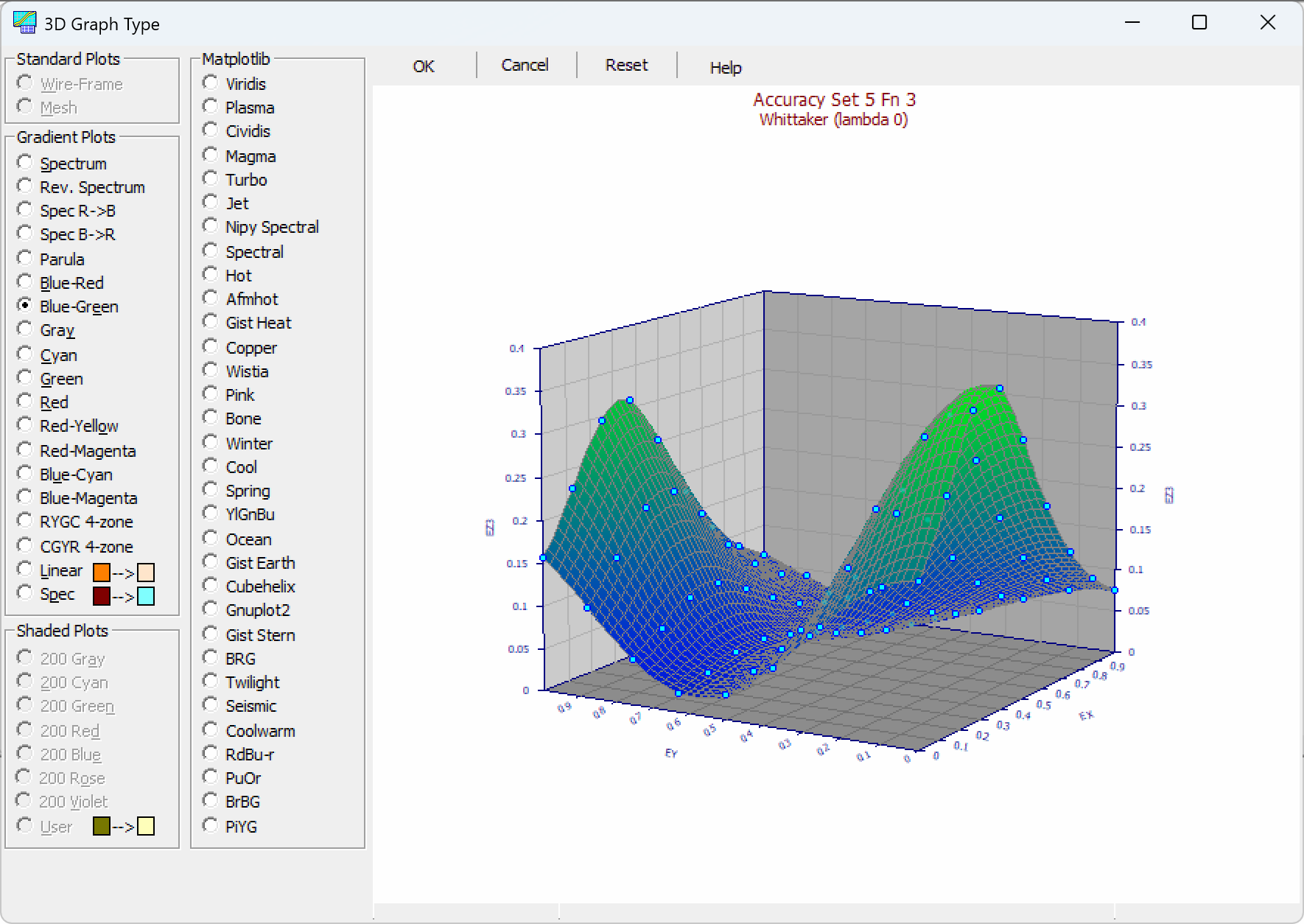
The 3D Type option is available in all of TableCurve Studio's principal graphs that contain a surface. The 3D Graph Type dialog sets how the fitted surface is drawn. The choices are organized into four groups: Standard Plots (wire-frame and mesh), Gradient Plots (the program's own color ramps), Matplotlib (a large library of standard scientific colormaps), and Shaded Plots (light-source shading). The same choice can be made from the Select Color Gradient for Surface or Contour toolbar button in any surface graph.
Standard Plots
Wire-Frame — draws the surface as a continuous series of lines. Hidden lines are not removed. This is the fastest and simplest plot but is of limited use in serious surface-fitting work. The wire color is set by the Wire Line item in the Customize Colors option.
Mesh — draws the surface as a series of filled polygons drawn back to front, with hidden lines removed. This is the default graph type. The mesh line and mesh fill colors are set by the Mesh Line and Mesh Fill items in the Customize Colors option.
Gradient Plots
In a gradient plot the Z range of the graph is mapped to a band of colors and each polygon is drawn in the color for its height. Gradient plots draw many more polygons than a mesh plot and are the most computationally demanding graph type. The colors within a gradient are not individually adjustable. The available gradients are:
· Spectrum and Rev. Spectrum — a full-spectrum ramp and its reverse.
· Spec R->B and Spec B->R — spectrum ramps running from red to blue and from blue to red.
· Parula — an approximation of the MATLAB default colormap.
· Blue-Red, Blue-Green, Blue-Cyan, Red-Yellow -- simple two-color ramps between the named endpoints.
· Gray, Cyan, Green, Red — single-hue ramps from dark to light.
· RYGC 4-zone and CGYR 4-zone -- four discrete color bands (red-yellow-green-cyan and the reverse) rather than a continuous ramp, useful for reading the surface as four height zones.
· RYC 3-zone and CYR 3-zone -- three discrete color bands (red-yellow-cyan and the reverse) rather than a continuous ramp, replacing the retired Red-Magenta and Blue-Magenta ramps. See 3D Colormaps.
· Linear and Spec — user-defined ramps. Pick the two endpoint colors shown beside the option and the program builds a linear (straight color interpolation) or spectral (through-the-spectrum) ramp between them.
Matplotlib Colormaps
The Matplotlib group offers the standard scientific colormap library used across Python's data-science ecosystem. Any of these maps the Z range of the surface to color in the same way as a gradient plot. The colors within a Matplotlib map are not individually adjustable. As with any gradient, the Toggle Legend for Surface or Contour toolbar button adds a color-scale bar that maps the colors back to Z values. They fall into four families:
Perceptually Uniform — color changes evenly with height across the whole range, so equal steps in Z look like equal steps in color. These are the best general choice when accurate reading of the surface matters more than a familiar look.
· Viridis — dark purple-blue through green to yellow. The modern default choice: engineered for perceptual uniformity, and legible both in grayscale printouts and to most forms of color vision deficiency. The safest first pick for any surface.
· Plasma — dark purple-blue through magenta to bright yellow. The same perceptually uniform design as Viridis with a warmer, higher-contrast high end; a good alternative when Viridis feels too cool or muted.
· Magma — black through purple and red to a pale cream. Stays very dark at the low end, which gives strong contrast against a white page or background — useful for print and for surfaces where the low region should recede visually.
· Cividis — dark blue through gray to yellow. Purpose-built to look correct to viewers with the two most common forms of color blindness while remaining perceptually uniform for everyone else; the best choice when the audience's color vision is unknown or mixed.
· Turbo — a rainbow spanning blue through green and yellow to red. A modern replacement for Jet that keeps the intuitive, high-contrast look of a rainbow while correcting most of Jet's perceptual distortion, so features are less likely to be exaggerated or hidden.
Classic Sequential — traditional single- or multi-hue ramps carried over from long-standing scientific plotting conventions. They are familiar but generally not perceptually uniform, so equal steps in Z can look larger or smaller than they really are depending on where they fall in the range.
· Jet — the traditional blue-cyan-green-yellow-red rainbow. Extremely familiar from decades of scientific software, but its uneven color spacing can create false banding or hide real features; use it for a recognizable look rather than for precise reading.
· Nipy Spectral — a dense rainbow running from violet through the spectrum to red and back to gray. Its fine-grained color steps make it good for distinguishing many closely spaced Z-levels at a glance.
· Hot — black through red and orange to yellow and white, mimicking the glow of a heated object. An intuitive "how hot is this" reading, popular for intensity and thermal-style data.
· Afmhot — the same black-red-yellow-white heat progression as Hot, with a smoother, more evenly paced transition; a gentler alternative when Hot's contrast feels too abrupt.
· Gist Heat — another black-through-red-to-white heat map, with different transition points than Hot and Afmhot, giving a slightly different balance of warm tones.
· Copper — black to a warm copper-bronze tone. Gives a metallic, low-key appearance that works well for a restrained, print-friendly look.
· Bone — black through a bluish gray to white, resembling x-ray or bone imaging. A useful alternative to plain grayscale that still reads clearly in print while adding a faint color cue.
· Pink — black through pastel pink to white. A softer, gentler sequential map for a less clinical presentation.
· Wistia — pale yellow through orange to red. A warm, friendly progression well suited to showing increasing intensity without the alarm associated with a full heat map.
· Cool — cyan through to magenta. A simple, high-contrast two-hue ramp with a cool overall tone.
· Spring — magenta through to yellow. Bright and high-energy, useful for eye-catching presentation graphics.
· Winter — blue through to green. A cool-toned ramp with an icy, wintry feel.
· YlGnBu — yellow through green to blue. A ColorBrewer sequential map with a natural low-to-high reading, well suited to data like density or water depth.
· Ocean — green through blue to near-black, evoking bathymetric or undersea charts. A natural fit for surfaces with a "depth" association.
· Gist Earth — blue and green through brown to white, modeled on topographic terrain maps. A strong choice for surfaces that represent physical elevation.
· Cubehelix — cycles through hue while increasing in brightness in a mathematically controlled way, so it stays readable even printed in black and white or viewed with color blindness. A strong choice whenever grayscale-safe output matters.
· Gnuplot2 — a colorful traditional rainbow ramp in the style of Gnuplot's own default palette; a familiar option for anyone coming from a Gnuplot-based workflow.
· Gist Stern — a high-contrast rainbow-like ramp with a stretched contrast curve, which emphasizes subtle differences in the middle of the data range at the expense of the extremes.
· BRG — blue through red to green. A bold three-hue ramp for strongly separating three broad regions of the Z range.
Diverging — two colors meeting at a neutral midpoint. Use these when the meaningful reference is a center value (for example zero) with the surface running above and below it.
· Coolwarm — blue through white to red. A smooth, moderate-contrast diverging map, good as a general default whenever the data has a meaningful center.
· Seismic — blue through white to red like Coolwarm, but with more saturated endpoints. Borrowed from seismology and geophysics visualization, it gives stronger visual contrast between positive and negative regions.
· Spectral — a diverging rainbow running red-orange-yellow-green-blue. Gives more distinguishable intermediate steps than a simple two-color diverging map, at the cost of a less immediately obvious "high vs. low" reading.
· RdBu-r — red through white to blue. A clean, high-contrast diverging map with an unambiguous color association: red reads as high, blue as low.
· PuOr — purple through white to orange. Avoids red and green entirely, so it stays clearly readable for the most common forms of color blindness.
· BrBG — brown through white to teal-green. Carries a natural moisture/dryness association, useful for environmental or geographic data with that character.
· PiYG — pink through white to yellow-green. Another diverging map that avoids red-green confusion, useful as a colorblind-friendly alternative to Coolwarm or Seismic.
Cyclic — begins and ends on the same color, for data where the highest and lowest values are equivalent.
· Twilight — dark blue through white and pink and back to dark blue. Built so its two ends match exactly, making it the right choice for cyclic quantities such as phase, angle, or time-of-day, where "highest" and "lowest" are really the same value.
Shaded Plots
In a shaded plot the brightness of each mesh element is adjusted for the illumination that would be produced by the light source set by the illumination angular shifts in the 3D View option. The default shifts of +30 degrees XY and +15 degrees Z are similar to holding a point source above and to the right of the viewer. Shaded plots draw no more polygons than a standard mesh plot, so they are faster than gradient plots. The available shaded plots are:
· 200 Gray, 200 Cyan, 200 Green, 200 Red, 200 Blue, 200 Rose, 200 Violet — each a single hue rendered across 200 shade levels.
· User — shades between two endpoint colors you choose.
Color Schemes
The program's color schemes were designed primarily for standard mesh plots. With the many colors present in gradient, Matplotlib, and shaded plots, conflicts can arise with the colors used for data points, drop lines, and interval lines. When using these graph types, use the Customize Colors option to set graph-element colors that stand out against the surface colors in use.
Restoring Default
The Reset button restores the program's default mesh plot.