 Data Graph
Data Graph
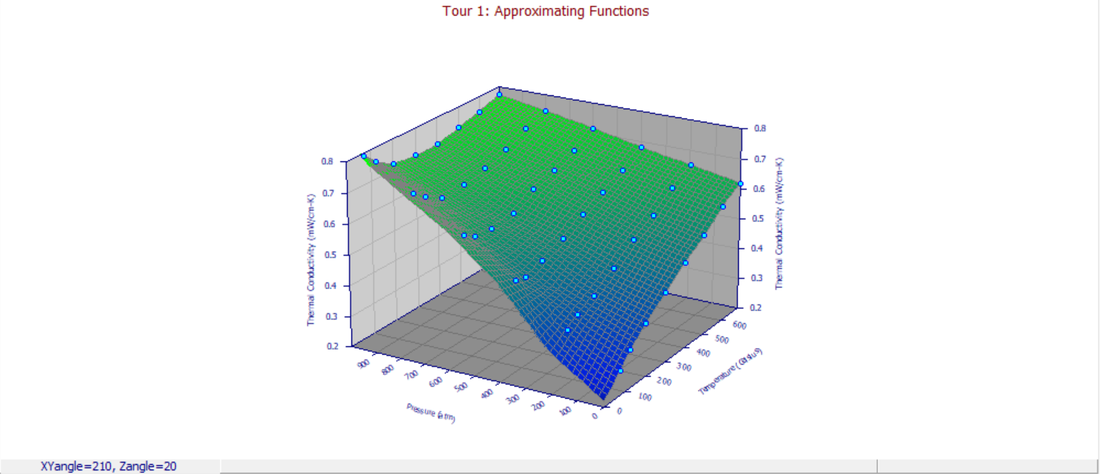
The Data Graph option in the View menu is used to view a 3D scatter plot or interpolated surface of the currently selected XYZ data. The graph will be displayed using a type, size, position, view format, point format, font, and color specific to View Data Graph graphs. These specifications are automatically saved across sessions and are also used for the intrinsic data items in the TableCurve Studio explorer.
A data graph can be scaled and formatted, its 3D view adjusted, and the graph can be printed or copied to the clipboard. You may click within the titles area of the graph to invoke the Custom Titles option, to the left or below the graph to open the Scaling dialog, and within the graph itself to adjust the 3D View.
Add Surface
The Add Surface checkbox replaces the scatterplot with a surface rendered via the Renka I procedure. This option is only for basic visualization. The Estimate Gridded Data or Estimate Scattered Data options in the Non-Parametric menu should be used for non-parametric modeling.
Options
The Data Graph options include:
· Selecting the 3D Graph Type
· Adjusting 3D View Options
· Modifying the Scaling of the graph
· Animating the graph at a succession of view angles
· Setting Custom Graph Titles
· Choosing a Graph Font
· Modifying the Graph Colors
· Selecting a Graph Point Format
· Copying the graph as a Metafile or Bitmap
· Printing the graph
On-Graph Editing (Point Sectioning)
For isolating and deactivating individual points, an graph editing capability is available. This graphical X,Y,Z editing toggles individual points between an active and inactive state. This operation begins by placing the cursor directly on a data point. A special cursor will show that a point is contained inside and the information display below the graph will indicate the point detected and its status. To change the status of the data point, simply click and release the left mouse button. The point's color will change to reflect its new status.
 Note that this on-graph editing is also available in the Section
Data option.
Note that this on-graph editing is also available in the Section
Data option.
 Alternatively, you may also check each X,Y,Z point as inactive in the TableCurve
Studio Editor. In this case, however, you will have
to save the modified data to disk.
Alternatively, you may also check each X,Y,Z point as inactive in the TableCurve
Studio Editor. In this case, however, you will have
to save the modified data to disk.
Add
 If no points were toggled off in the graph, the Add
button adds a View
Item to the currently selected XYZ data object
in the TableCurve
Studio explorer. This item will construct the
identical data as the parent, but will have its own graph customizations.
If no points were toggled off in the graph, the Add
button adds a View
Item to the currently selected XYZ data object
in the TableCurve
Studio explorer. This item will construct the
identical data as the parent, but will have its own graph customizations.
 If one or more points were toggled off in the graph, the Add
button adds a Section
item to the notebook. A Section
operation can be added to any item containing XYZ data, including other sectioned items. Since a Section
item covers both range sectioning and individual point editing, the object consists of the state of each
and every point. For this reason, a section object cannot be dragged and dropped (or copied and pasted)
in the TableCurve Studio explorer.
If one or more points were toggled off in the graph, the Add
button adds a Section
item to the notebook. A Section
operation can be added to any item containing XYZ data, including other sectioned items. Since a Section
item covers both range sectioning and individual point editing, the object consists of the state of each
and every point. For this reason, a section object cannot be dragged and dropped (or copied and pasted)
in the TableCurve Studio explorer.
Update
If a View item is currently selected and the
main graph is clicked, the Update
button will be enabled. If no points were toggled off in the graph, the Update
button will update the current graph settings.
Note that the Add or Update options must be invoked before closing the dialog in order for the view item to be added to the current notebook.
Intrinsic Data Items
When an XYZ data item is specified, it first appears as an intrinsic or native data item. These items in the TableCurve Studio explorer do not contain customized graph settings, but display in the main window using the current settings in this option.
For 2D (XY) Data
For a 2D (XY) data item, this is the View Data option in the Data menu or main toolbar. It offers error bars when replicate Y values at a given X were averaged: an SD of 0 is used if all replicates at that X are identical, and if only a single value is available, the conservative fallback is to set the SD to the full range of the Y variable.
List Data lists the index, X, and Y values in a text window. Copy Data to Clipboard copies the X,Y values as full-precision binary or ASCII. Save Data to Disk writes them to ASCII, Excel, SPSS, or Systat format. MS Word/RTF File Export saves the graph itself to a Word or RTF file as a Windows metafile.