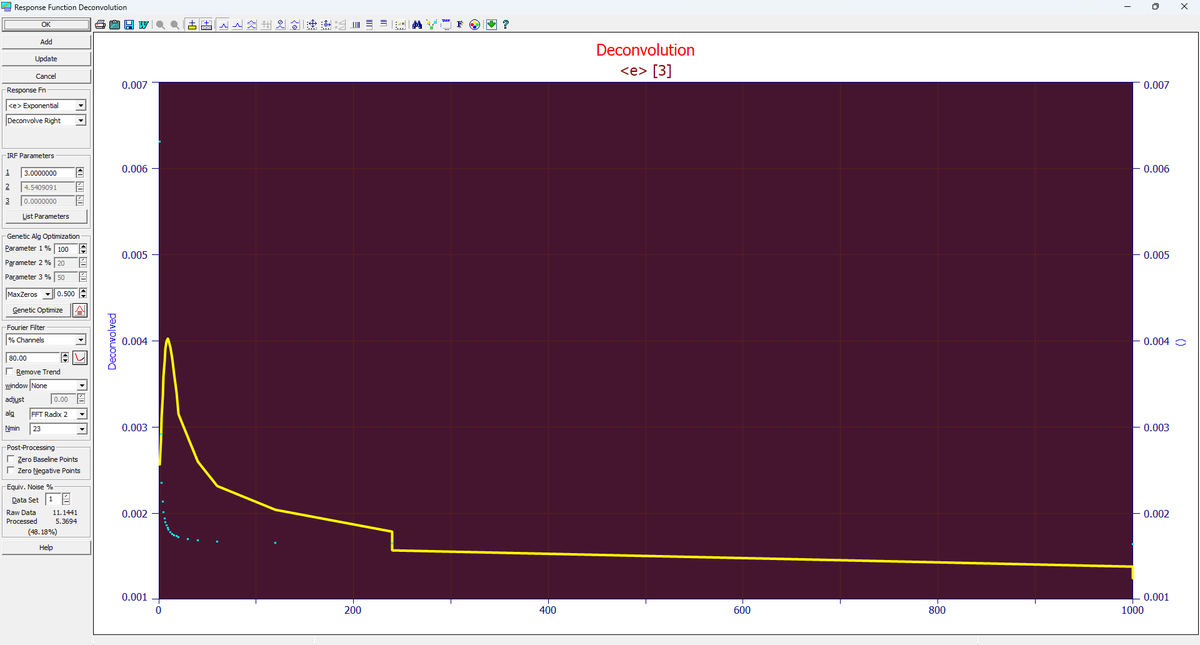
IRF Deconvolution
The Deconvolution option in the Data menu removes the distorting effect of the measuring instrument from a recorded signal, or applies that effect to a signal. Every instrument spreads a true, sharp event out in time: a detector has a finite response, an optical system has a finite resolution. That spreading is called the instrument response function (IRF).
Deconvolution and Convolution
This procedure offers both deconvolution and convolution. In simplest terms, convolution is the smearing of a data set by a given instrument response function. Deconvolution is the procedure of undoing that smearing, in an effort to see what the data would look like had the instrument rendered it perfectly.
Deconvolution is done in the frequency domain: the data are transformed, divided by the transform of the IRF, and transformed back. This sharpens the data and is typically used to remove instrumental or system distortion before fitting. Convolution multiplies by the transform of the IRF instead, and so smears the data by a known response.
Fourier Signal Processing Requirements
Because a Fourier signal must be continuous, and zero at both bounds, to avoid introducing 'ringing', a baseline correction step should always precede this procedure. This applies to both deconvolution and convolution. Be generous with the amount of baseline on each side of the peaks.
Uniformly spaced data are also needed so that no additional noise is introduced. This procedure does not automatically generate uniform data for the transform. If needed, the Spline Estimation or Local Regression Spline Estimation option can be used to create an interpolated data set with constant X-spacing.
Response Function
The IRF model is selected in the first Response Fn dropdown. When an IRF is selected, the current default parameters for that IRF are placed in the IRF Parameters fields. The default is the <e> Exponential, a single exponential decay (the common case for chromatographic peak tailing) with a time constant of 0.05. The following response functions are available:
· <ge> Area Sum Half-Gaussian,Exp: an area-weighted sum of a kinetic (exponential) and a probabilistic (half-Gaussian) component. In our research it best described the IRF of nearly every analytical peak evaluated.
· <e2> Area Sum Two Exponential: a weighted sum of two first-order kinetic (exponential) components. Very close to <ge> in accuracy.
· <pe> Area Sum Kinetic 1.5,Exp: a weighted sum of a 1.5-order and a first-order kinetic component. Often the most accurate, but harder to estimate because its long sloping tail correlates with the wider exponential; the genetic algorithm optimization below manages it well.
· <g2> Area Sum Two Half-Gaussian
· <g> Gaussian
· <e> Exponential (order 1 kinetic decay)
· <k> Kinetic, fractional order
· <n> Error model (1-sided decay)
· <s> Student's t (1-sided decay)
· <l> LN4 GenNormal (1-sided decay)
· <v> Voigt (1-sided decay)
The two-component models (<ge>, <e2>, <pe>, <g2>) have three parameters: the two component widths and the area fraction. Some of the models have only a statistical basis and should be considered experimental.
The direction is set in the second dropdown. You can deconvolve or convolve to the right, to the left, or two-sided:
· For chromatographic data, use Deconvolve Right. We recommend that you start with the <ge>, <pe>, or <e2> model for both LC and GC, as these IRFs are the most likely to match real-world distortions.
· For an IRF in spectroscopic data, use the Two-Sided option. Use the <g> Gaussian to deconvolve the Gaussian component, and the <s> Student's t with nu set to 1.0 to deconvolve the Lorentzian component.
· Use the Convolve options to apply a response function to the data, for example to reproduce an instrument's smearing, or to undo the compression of HPLC gradient peaks (the <g> or <k> model is a good start for this).
The List Parameters button lists the parameters.
IRF Parameters
These are the parameter values of the selected IRF. Models with fewer than three parameters use only the first fields; the others are inactive. You can enter the values, use the spin buttons, or right-click a field for a menu listing the values that would appear in the spin function. When a value is changed, the deconvolution or convolution is updated automatically.
Genetic Algorithm Optimization
Rather than adjusting the IRF parameters by hand, you can have a genetic algorithm (GA) find the optimal IRF parameters for the data. A GA uses random sampling to navigate local minima, and to optimize a procedure that cannot be stated as an equation differentiable with respect to its parameters. The candidates are spread across simultaneous threads, which communicate their progress to one another to hasten convergence, so the more cores your machine has, the faster the optimization. Because the convergence mechanism varies with the core count, you may see somewhat different optimal settings on machines with different core counts.
For a deconvolution, each set of trial IRF parameters is applied in a Fourier deconvolution, and a merit function that seeks to maximize the count and accuracy of baseline points within a specified tolerance is evaluated. Even a seemingly simple three-parameter IRF can require tens of thousands of deconvolutions to converge. The GA strategies used are fast and efficient, but not immediate: a 20,000-point data set may need up to ten seconds or so on a typical machine.
The GA works best with bounds that confine the estimates to reasonable values, so you specify the allowed variation of each parameter as a percent (Parameter 1 %, Parameter 2 %, Parameter 3 %). The defaults assume a three-parameter IRF: the first parameter is the system component of the IRF, which may vary appreciably (default 100%); the second is the exponential instrumental component, likely to vary little (default 20%); and the third is the area fraction, likely to be reasonably well estimated by the defaults (default 50%). These defaults assume IRF starting values in the ballpark of the true values.
· If you specify more than 100%, only the upper range is expanded; the lower bound stays constrained to a positive value.
· To lock a parameter at a fixed value, set its % variation to 0.
The merit function is selected in the dropdown below the parameter percentages, and its value is set in the field beside it:
· MaxZeros is the merit function for deconvolution. It maximizes the count of baseline (zero) points, within a tolerance you specify as a percent in the field beside it. For high signal-to-noise data the 0.5% default should be sufficient; increase it for noisier baselines. Because the optimization depends on the amount of stable baseline produced by the deconvolution, and an IRF deconvolution removes right-side tailing, only peaks with baseline-resolved right-side decays contribute. You will need baseline-resolved peaks for an accurate optimization.
· AmpAtten is the merit function for convolution. You specify the desired amplitude attenuation as a fraction of the amplitude of the raw data (for HPLC gradient peaks, typically 0.86-0.92). For a one-parameter model such as <g>, only one parameter value produces this attenuation. With a second parameter, as in the <k> model, the GA also seeks the convolution with this attenuation that produces the greatest measure of baseline. Never use MaxZeros for a convolution.
Click the Genetic Optimize button to start the optimization. All buttons except Cancel are disabled while it runs. When it finishes, the IRF Parameters are updated with the optimized values, and the optimized result is shown with a different background color in the graph.
Genetic Algorithm Preferences
The Preferences button beside Genetic Optimize opens the Genetic Algorithm IRF Optimization Preferences dialog. These settings are independent of the GA settings used elsewhere in the program.
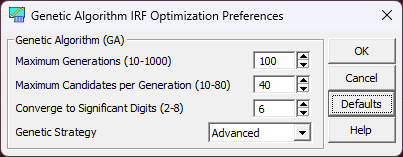
· Maximum Generations (10-1000) sets the count of evolutions allowed in the differential-evolution GA (default 100). The algorithm stops at this count if it has not yet converged.
· Maximum Candidates per Generation (10-80) sets the number of independent random candidates in each generation. The default of 40 works well for IRF optimizations.
· Converge to Significant Digits (2-8), default 6, is about what can realistically be reached in a reasonable time. If you increase it, also increase Maximum Generations.
· Genetic Strategy: Advanced is the default. Fast converges more quickly and is usually sufficient for IRF optimizations with few parameters. Random is slower but less likely to miss the global minimum. If convergence is slow, increase Maximum Generations.
The Defaults button restores the default settings.
Fourier Filter
Deconvolution amplifies noise at every frequency where the transform of the response function is weak. Unless your data are very clean, you will want a filter that zeroes the higher-frequency or lower-dB channels to reduce the noise in the deconvolved signal. The filter type is selected in the dropdown, and its value is set in the field below it:
· None: no Fourier filtering. This is usually the setting for convolutions, which produce their own noise reduction. For deconvolutions, filtering is generally beneficial and often essential.
· Frequency: the actual frequency beyond which all Fourier channels are zeroed. Note that some Fourier procedures use a normalized scale from 0 to 0.5 (0.5 is the Nyquist frequency); here you must specify the actual frequency.
· dB Norm: the dB threshold below which all Fourier channels are zeroed.
· % Channels: the percentage of channels to zero. For peak data with a good sampling rate this value should be quite high, since most channels contain noise rather than signal.
· D2 Automatic: selects the frequency where the first D2 (second-derivative) peak appears after the initial drop. You specify the Savitzky-Golay D2 smoothing level as a percent (default 8% of the data range). This method is not normally suitable for deconvolutions, only for convolutions.
· Min Automatic: selects the minimum in the Fourier spectrum, generally where deconvolution noise starts to increase the magnitude of the signal. You specify the percentage of the initial Fourier channels to scan (default 20%). This method is primarily of value for deconvolutions.
The Remove Trend option, a window function (None by default) with its adjust value, the transform algorithm (alg, FFT Radix 2 by default), and the Nmin setting complete the filter controls.
Visually Setting the Fourier Filter Threshold
The button beside the filter value opens the Fourier Filter dialog, a Fourier-domain filter that can make an immense difference when deconvolving data containing some noise. The power spectrum is displayed on a zero-normalized dB (decibel) scale; a change of 20 dB corresponds to one order of magnitude of peak amplitude. The data shown are the deconvolved data (with added noise) or the convolved data (with reduced noise), not the original data. To inspect the spectrum of the raw data, use Fourier Denoising in the Data menu.
Because of a Gaussian's compact decay, the <g> Gaussian IRF tends to be the most difficult to deconvolve, especially as a symmetric IRF in spectroscopic peaks. This view lets you see the noise generated and what must be filtered.
Post-Processing
· Zero Baseline Points zeroes the points in the result that were identified as baseline in a preceding baseline correction step.
· Zero Negative Points zeroes all points that are negative after the deconvolution.
Equiv. Noise %
This reports an estimated Gaussian (white) noise for the Raw Data and for the Processed result, with the percentage of noise remaining after processing shown below them. With filtering applied, you will usually want the processed signal to show reduced noise.
The estimate uses a cubic polynomial interpolation at each point from the two points to its left and the two to its right (excluding the point itself); the differences between the interpolated and actual values measure the white noise. This assumes the data can be locally described by a smooth cubic, and that the signal lies in the lower quarter of the Nyquist range. If a high-frequency signal component is present, the noise estimates are not valid.
Deconvolution Pitfalls
If you deconvolve a response function close to or wider than the width of a peak, the result is generally nonsense. Even with effective frequency-domain filtering, noise at lower frequencies can produce something other than a smooth deconvolution. When the IRF width is too large, the result may also contain negative values or small sinusoidal components.
If the response function width is too small, you essentially have a delta function: a value of 1 in the first array element and zeros thereafter. Discrete Fourier processing needs some number of non-zero channels in the IRF. If the result disappears completely, the width is probably too small for a discrete deconvolution.
There are limits to what deconvolution can do. It cannot recover a pure spectral line, for example. If you obtain peaks about 30% narrower than the originals and the data still look respectable, you have done well; that is about the extent to which Fourier deconvolution can sharpen peaks.
Non-Linear Nature of Deconvolution
Convolution and deconvolution are not linear in width. If a Gaussian is smeared by a symmetric Gaussian IRF, the result is also a Gaussian, with a variance equal to the sum of the two variances. A Gaussian with SD=3 convolved with a Gaussian IRF of SD=3 gives a peak with SD = sqrt(3^2+3^2) = 4.2: smearing by an equal-width IRF makes the peak only 1.4 times as wide, not twice as wide. In deconvolution the opposite holds: that 4.2 SD peak deconvolved with an SD 3.0 Gaussian yields an SD 3.0 Gaussian. Even when you deconvolve a very large response function, the resulting peak still has a significant width.
Sequential Sharpening of Spectra
To sharpen spectra for visualization, you can apply <v> Voigt deconvolutions in sequence. First fit the data with Voigt peaks, sharing the Gaussian and Lorentzian widths across the overlapping peaks, to estimate how much Gaussian and Lorentzian width is available. The Lorentzian part of the <v> deconvolution (the second IRF parameter) gives the most sharpening; the Gaussian part (the first IRF parameter) gives less. A good approach is to deconvolve about 70% of the two fitted Voigt widths, keeping the same Gaussian-Lorentzian ratio. Because Lorentzian widths add directly while Gaussian widths add as the square root of the sum of the variances, it is easiest to fit the result of the first deconvolution again and use 70% of the new fitted widths for a second deconvolution.
List
The List Data option lists the index, time, and output signal in a three column table. The listing uses the TableCurve Studio text viewer facility.
Copy
The Copy Data to Clipboard option copies the time and output signal values to the clipboard. Formats include full precision binary (for spreadsheets such as Excel) and ASCII (for pasting into text editors).
Save
The Save Data to Disk option writes the time and output values to a supported file format, including ASCII and Excel (xlsx/xls).
Production Facility
The Automation facility allows unattended processing of large numbers of data sets. The data sets can come from a text/CSV file or an Excel workbook. The graphs and reports can be exported to an RTF file or streamed to Microsoft Word, while the processed data can be exported to an Excel (xlsx) workbook.
The Reset button restores the data to its state when first entering the procedure.
Residuals
The Residuals button is used to graphically display the difference between the original and processed data.
Numeric Summary
The Numeric Summary offers a full report, including the response function and its parameters and the Fourier filter settings used.
MS Word/RTF Export
The MS Word/RTF File Export option is used to save the current graphs and reports to either an MS Word file or a portable RTF (Rich Text Format) file. The graphs are inserted into the file as Windows metafiles.
Automatic Update
The List, Residuals, and Numeric Summary windows are automatically updated when any change is made to the procedure's settings.
Updating the Data Table
When exiting this procedure with the OK button, an option will be presented to update TableCurve Studio's main data table with the processed data.
If Background Thread Fitting is active, the fitting will be initiated as soon as the result is accepted and the data are rescanned.