Fourier Filtering
·
This tutorial covers the Fourier filtering capabilities of TableCurve Studio.
Importing a Test Signal
For this tutorial, we will use a data set that contains one reference sinusoid and two low power sinusoids, one with a higher and the other with a lower frequency. The low power components are -40dB and -60dB below the reference sinusoid. White noise creates a noise floor at approximately -75dB. The object of this test is the accurate frequency and power estimation of these two low power components, and the recovery of phase information for them.
Click File > Import Data Source and select tutor2.csv from the Data subdirectory.
The following signal expression was used to generate this data:
F1=SIN(2*PI*X*1005+PI/4)
F2=0.01*SIN(2*PI*X*505+PI/2)
F3=0.001*SIN(2*PI*X*1505+PI)
Y=F1+F2+F3
The X (time) values vary from 0 to 0.1 with a 0.0001 sample increment. The Nyquist frequency is thus 5000 (half the 10000 sampling frequency). The first low power sinusoid (-40dB) has 1% of the amplitude and 0.01% of the power of the reference sinusoid. The other low power test sinusoid (-60dB) has only 0.1% of the amplitude and 0.0001% of the power of the reference sinusoid. The 0.15 Gaussian Noise% creates a white noise floor at about -75dB. It should thus be possible to isolate even the -60dB component given a well designed Fourier filtration.
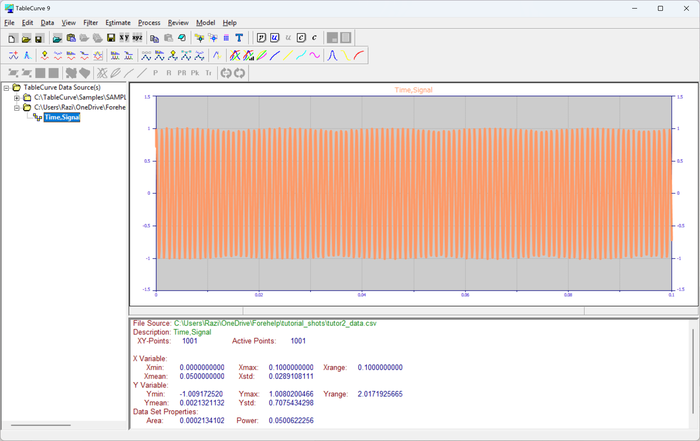
The 1001-point data set loads directly into the main TableCurve Studio window. In TableCurve Studio, the main window is informational only — the various analyses and processing take place in separate procedures tailored to each specific option.
Viewing the Data
Select the View Data option in the Data menu or main toolbar. Zoom in on a region of the data.
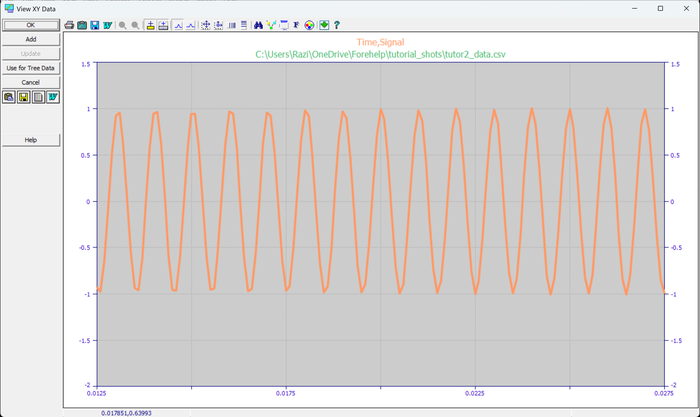
Inspecting the data visually, only the reference sinusoid is apparent. The two low power sinusoids are imperceptible.
Click OK to exit the view option.
Fourier Filtering
 Select the Fourier Filtering
option in the Filter menu or main toolbar. Be sure Remove
trend is unchecked, set the Window to
Chebyshev,
the adj parameter to 103,
and the edge% to 1.0.
Be sure the default Best Exact N
algorithm is selected and Nmin
is 1001.
Select the dB Norm
plot.
Select the Fourier Filtering
option in the Filter menu or main toolbar. Be sure Remove
trend is unchecked, set the Window to
Chebyshev,
the adj parameter to 103,
and the edge% to 1.0.
Be sure the default Best Exact N
algorithm is selected and Nmin
is 1001.
Select the dB Norm
plot.
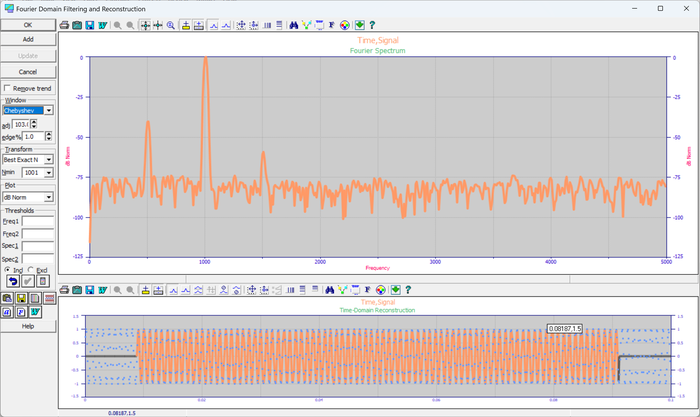
For high dynamic range Fourier spectral analysis, data tapering windows are almost always used. These settings are about optimum for resolving the three components.
 Select XY Sectioning mode. Using the left mouse button, box the largest peak down to about -75dB.
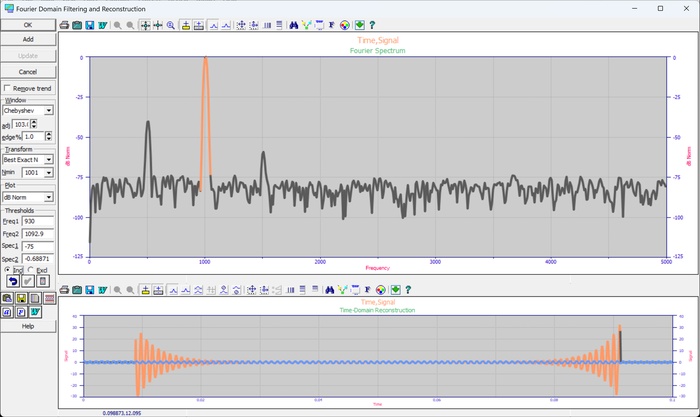
 Confirm the Ind (not Excl) radio is selected in the Thresholds panel, then click Add. This creates a new
child entry in the data tree holding just the isolated component - select it before the next step.
Confirm the Ind (not Excl) radio is selected in the Thresholds panel, then click Add. This creates a new
child entry in the data tree holding just the isolated component - select it before the next step.
 Select the Curve-Fit Waveform Functions
option in the Process menu or toolbar. When the fit is concluded, enter the Review by clicking the Graph
Start button.
Select the Curve-Fit Waveform Functions
option in the Process menu or toolbar. When the fit is concluded, enter the Review by clicking the Graph
Start button.
Select equation 8014, the sine-wave model.
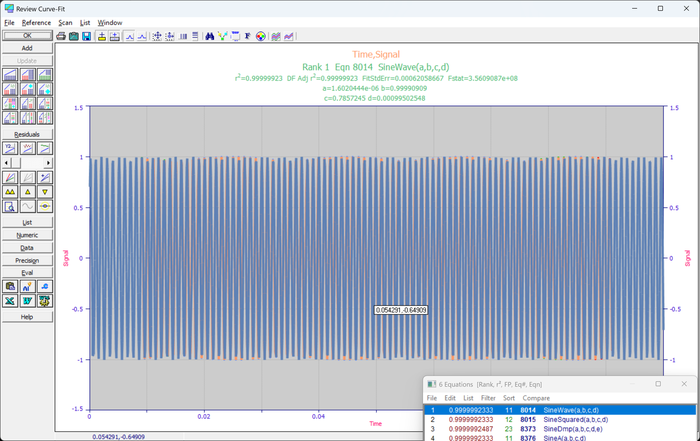
Given this peak's predominance, it is little surprising that the parameters are almost perfectly recovered. The amplitude of 1.0 is recovered as 0.999983, the phase of PI/4 as PI/4.0045, and the frequency of 1005 as 1/0.000995=1005.02. Note that TC2D's built-in sine model computes a wavelength rather than a frequency.
Click OK
to exit the Review.
 Click on Reset XY Data
to restore the original test data.
Click on Reset XY Data
to restore the original test data.
Again select the Fourier Filtering
option in the Filter menu or main toolbar.
Using the left mouse button, box the lowest frequency peak down to about -75dB. Zoom in on the time domain data in the lower graph.
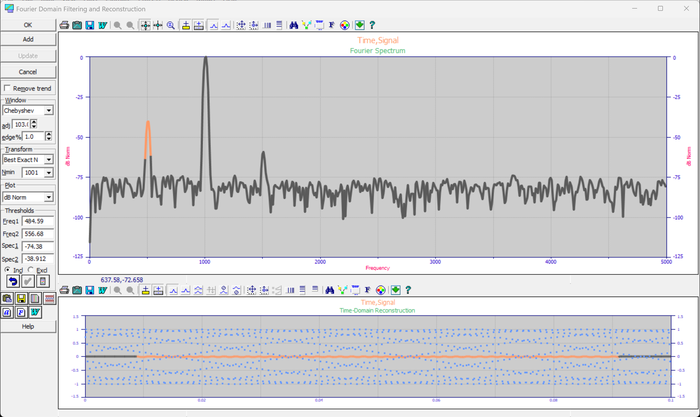
Confirm the Ind (not Excl) radio is selected in the Thresholds panel, then click Add. This creates a new
child entry in the data tree holding just the isolated component - select it before the next step.
Select the Curve-Fit Waveform Functions
option in the Process menu or toolbar. When the fit is concluded, enter the Review by clicking the Graph
Start button.
Select equation 8014, the sine-wave model.
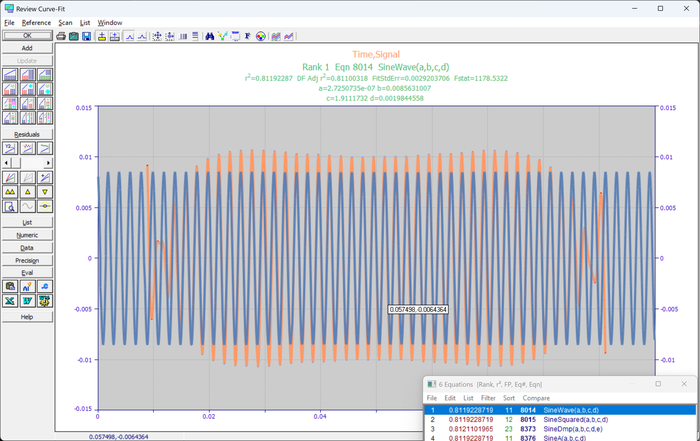
This spectral component has only 1% of the amplitude and 0.01% of the power of the main peak. Still it is recovered with some accuracy. The amplitude of 0.01 is recovered as 0.01001, the phase of PI/2 is recovered as PI/2.087, and the frequency of 505 is recovered as 1/0.001979=505.31.
Click OK
to exit the Review.
Click on Reset XY Data
to restore the original test data.
Again select the Fourier Filtering
option in the Filter menu or main toolbar.
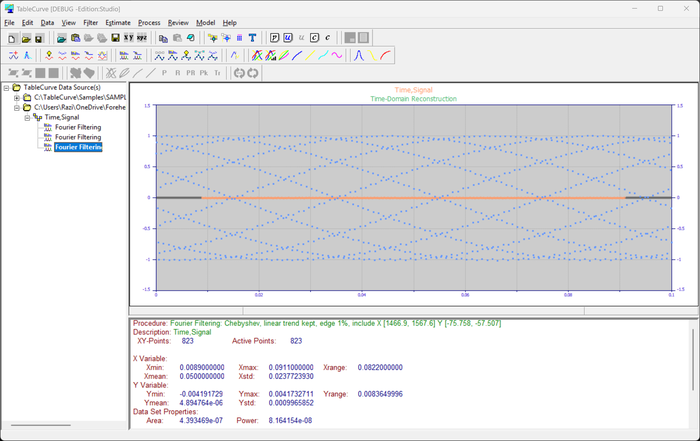
Using the left mouse button, box the lowest power peak down to about -75dB. Zoom in on the time domain data in the lower graph.
Confirm the Ind (not Excl) radio is selected in the Thresholds panel, then click Add. This creates a new
child entry in the data tree holding just the isolated component - select it before the next step.
TableCurve Studio currently uses a time domain procedure to scan for estimates of the waveform functions. This procedure works well so long as the number of cycles is not too high. We must thus reduce the number of cycles in the data to be fitted. We must also deal with the anomalies at the edges of the reconstructed data.
 Select the Section Data
option in the Data menu or main toolbar.
Select the Section Data
option in the Data menu or main toolbar.
Enter 0.045
for Xi and 0.5
for Xf. Click on Apply New.
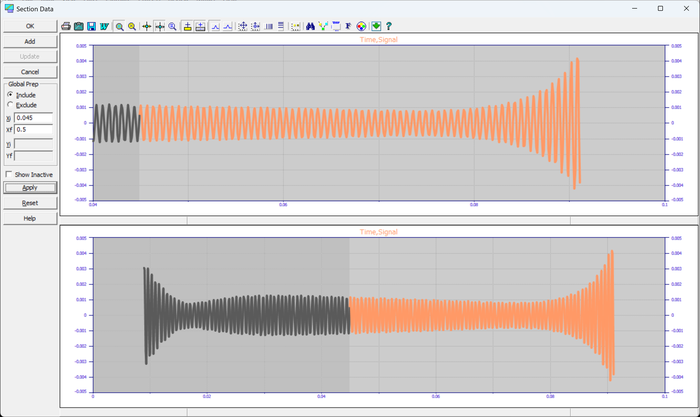
Click on OK, then click Yes when asked to add the section to the notebook. This creates a new "Sectioned Data" entry nested under the Fourier Filtering node you ran it from - select that new node before continuing to the next step.
Select the Curve-Fit Waveform Functions
option in the Process menu or toolbar. When the fit is concluded, enter the Review by clicking the Graph
Start button.
Select equation 8014, the sine-wave model.
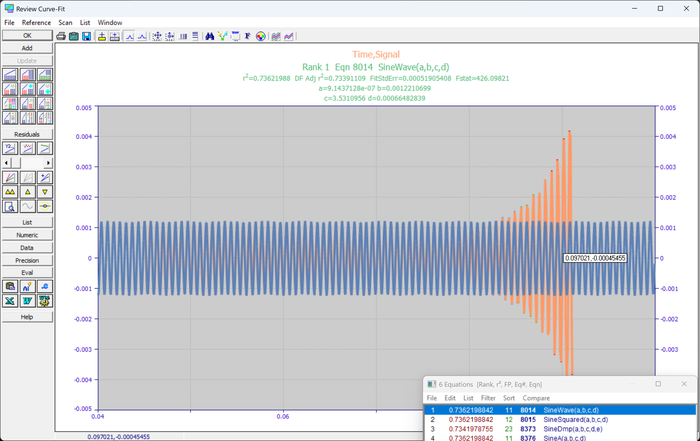
This spectral component has only 0.1% of the amplitude and 0.0001% (1 ppm) of the power of the main peak. Despite this very low presence, the sinusoid is adequately recovered. The amplitude of 0.001 is recovered as 0.00095, the phase of PI is recovered as 1.31*PI, and the frequency of 1505 is recovered as 1/0.000666=1501.5.
Click OK
to exit the Review.
Click on Reset XY Data
to restore the original test data.
Again select the Fourier Filtering
option in the Filter menu or main toolbar.
Linear Sinusoidal Fitting
TableCurve Studio v9 offers linear sinusoidal fitting. The peaks within the frequency spectrum are automatically identified, sorted by power, and up to 25 are automatically fitted to a sum of sinusoids model. In linear sinusoidal fitting, the frequencies are fixed at the values determined in the FFT. For a greater accuracy in these frequencies, a bin interpolation procedure is employed. By fitting a sum of sines and cosines, the phase is also linearized. The linear fitting thus computes the amplitude and phase parameters for the sinusoids at the fixed frequencies found in the FFT.
Click on the Numeric Summary button.
The frequency analysis is based directly upon the FFT. It finds the three peaks at 505, 1005, and 1505 as well as 22 other spectral features within the noise.
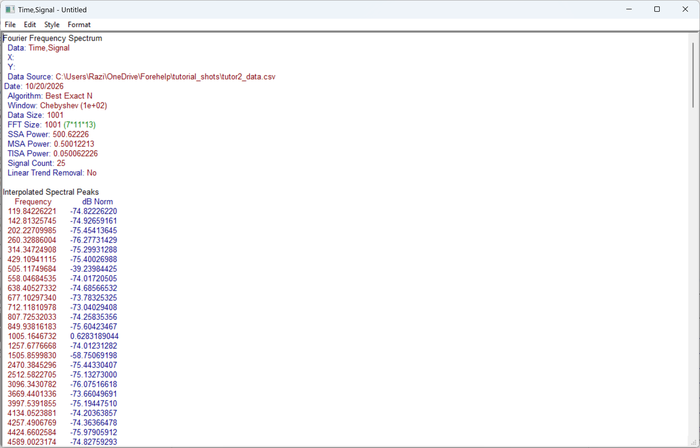
The linear sinusoidal fit will refine the amplitude and phase parameters for these three components.
Close the Numeric Summary and then Click on OK to close the Fourier Filtering procedure.
Parametric Fitting
Select the Process menu's User Functions item. In the UDF entry screen, enter 3sin as the Function Name, 9 as the Adjustable parameter count, Y=A0*SIN(2*PI*X*A1+A2)+A3*SIN(2*PI*X*A4+A5)+A6*SIN(2*PI*X*A7+A8) as the UDF expression, and the values 0.0098, 505.1, 1.55, 1.0, 1005.2, 0.73, .00072, 1503.8, and 3.22 for the nine starting estimates.
Click on the Fit UDFs button. When the fit is concluded, enter the Review by clicking the Graph Start button.
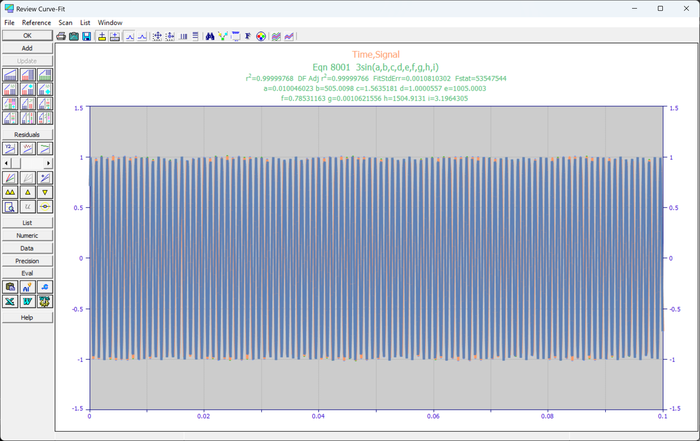
Using the estimates from the linear sinusoidal fitting, the UDF was able to refine the parameters of the sinusoids:
- All parameters in the high power component (1,1005,0.7854) are recovered to 4-5 decimal places, as (1.00006,1005.0003,0.78531).
- The first low power spectral component (.01,505,1.5708) is recovered as (.010046,505.0098,1.5635).
- The lowest power spectral component (.001,1505,3.1416) is recovered as (.0010622,1504.9131,3.1964).
Click OK
to close the Review.
Exit the program by closing the main window or by the Exit item in the File menu.
The Fourier filtering capabilities in TableCurve Studio are drawn from the signal analysis software product, AutoSignal. AutoSignal offers automated harmonic analysis and non-linear optimization with no practical limit on the number of spectral components.