 Automation
Automation
TableCurve Studio's automation processes a large number of data sets in exactly the same manner as the data set currently being processed. Reports are written to an RTF file or streamed to Microsoft Word, and numeric results are written to an Excel (xlsx) workbook.
Invoking Automation
First import a representative data set (the first of the series is a good choice), select the procedure, and choose the algorithm and settings. Once this data set has been processed, click the Production Facility button in the procedure to process the remaining data sets the same way.
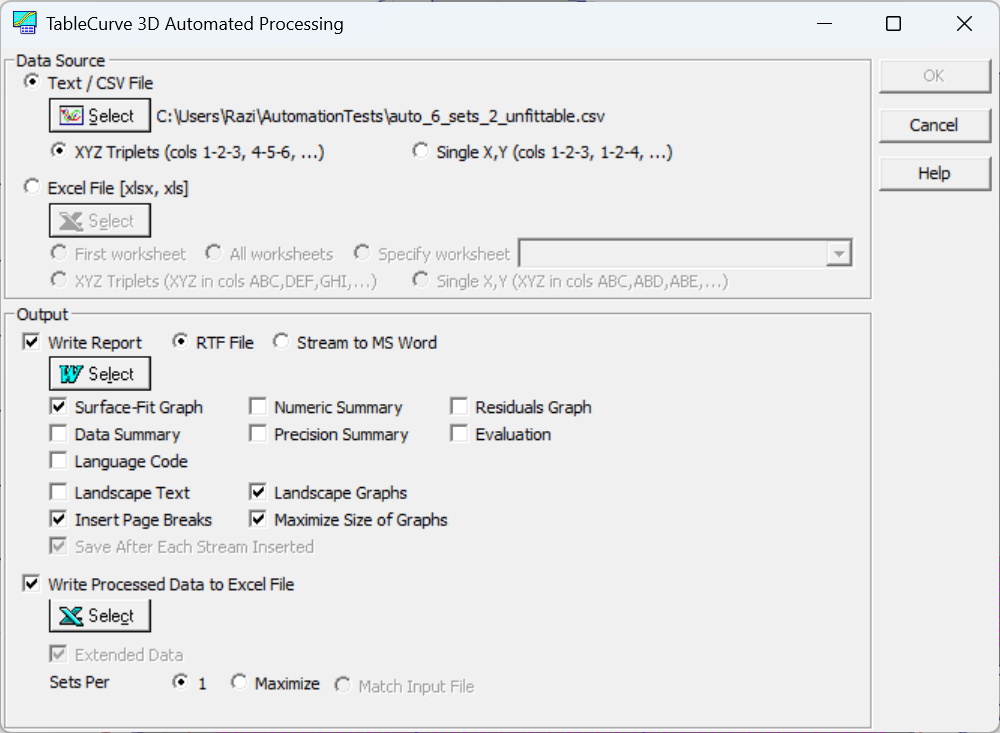
For XY (curve-fit) data, automation is available in most procedures within the Curve-Fit Review. For XYZ (surface-fit) data, automation is available in the Surface-Fit Review.
Apart from fitting, every adjustment the automation uses is the one set in the procedure being automated. For fitting, the fit adjustments come from the Curve-Fit Preferences or Surface-Fit Preferences, and the automation fits only the equation currently active on the graph. To automate several models over the same series of data sets, repeat the automation once for each equation.
Some procedures, such as smoothing, can be applied to widely varying data. Others give meaningful results only when the data sets are similar.
Data Source
The data sets can come from a text/CSV file or from an Excel workbook.
Text / CSV File
Click the file button to select a delimited text file (csv, prn, dat or txt). Commas and whitespace are detected automatically. Specify how the data are arranged:
· XY Pairs (XY data) — X and Y in columns 1-2, 3-4, 5-6, and so on.
· XYZ Triplets (XYZ data) — X, Y and Z in columns 1-2-3, 4-5-6, and so on.
· Single X (XY data) — one X column shared by every data set, with Y in columns 2, 3, 4, and so on (columns 1-2, 1-3, 1-4, ...).
· Single X,Y (XYZ data) — shared X and Y columns, with Z in columns 3, 4, 5, and so on (columns 1-2-3, 1-2-4, ...).
Titles are read the same way as in the normal data import. A first row that holds a group title over each data set (for example Decay,,Formation,,) supplies the main title, and the column titles supply the X, Y (and Z) titles. When there is no group-title row, the Y column title (XY data) or Z column title (XYZ data) is used as the main title. Data sets may have different lengths: blank trailing cells simply end a column.
Excel File (xlsx, xls)
Click the file button to select an Excel workbook, xlsx or the older xls format. Choose First worksheet, All worksheets, or Specify worksheet, which you pick by name from the list of the workbook's sheets. Specify how the data are arranged:
· XY Pairs — XY in columns AB, CD, EF, and so on.
· XYZ Triplets — XYZ in columns ABC, DEF, GHI, and so on.
· Single X — XY in columns AB, AC, AD, and so on.
· Single X,Y — XYZ in columns ABC, ABD, ABE, and so on.
Typically the main titles are in the first row, the column titles in the second, and the data begin in the third row. TableCurve Studio reads Excel files directly. Excel does not need to be installed, and TableCurve Studio does not launch it.
Processing
The procedure's graphs and numeric fields update as each data set is imported and processed, even when no export is selected. While processing is underway, all options are disabled except the Production Facility button, which stops the run when clicked.
To halt a run, click the Production Facility button or press the Space bar, Enter, Tab, End or Esc. You are asked whether to terminate the automation run: click Yes to stop, or No to continue. However a run ends, the data and fit that were current when the run began are restored, so nothing from the run is left behind in the Review.
In the Curve-Fit Review, if any data set loads but cannot be fitted, a message at the end of the run reports how many data sets produced stored fits (for example, "4 of 6 data sets produced stored fits in the output file(s)").
Export
Two exports are available, and either or both can be selected: a report containing graphs and numeric summaries, and an Excel workbook containing numeric data.
Report: RTF File or Stream to MS Word
Check Write Report, then choose one of the following:
· RTF File — the report is written directly to a Rich Text Format file. Microsoft Word is not needed.
· Stream to MS Word — the report is streamed into Microsoft Word as the automation runs and is saved as a Word document (.docx). Word must be installed.
The content depends on the procedure. Check the graph and report items you want; most procedures offer at least one graph, and a procedure with dual graphs writes both. Graphs use the current plot settings, and numeric reports use their current options. Further options are Landscape Text, Landscape Graphs, Insert Page Breaks, Maximize Size of Graphs and, when streaming to Word, Save After Each Stream Inserted, which saves the document after each stream is inserted.
Reports are formatted for 8.5 x 11 paper unless Use A4 as Default Paper Size is checked in Preferences.
Reports with graphs can become large over many data sets, so make sure there is enough free disk space before starting a long run.
Excel Export
Check Write Processed Data to Excel File and select the output file. The workbook is always written in the Excel xlsx format. If you give a name ending in .xls, the file is written as .xlsx.
Some procedures offer Extended Data, the same information shown in the procedure's List Data option. Uncheck it to write only the basic XY (or XYZ) columns. The Curve-Fit and Surface-Fit Reviews always write extended data.
Sets Per Sheet controls how the data sets are laid out in the workbook:
· 1 — writes each data set to its own worksheet.
· Maximize — packs as many data sets as fit on each worksheet.
· Match Input File — reproduces the layout of the input workbook. It is available only with an Excel source when First worksheet or All worksheets is chosen and Extended Data is off, so it is not available with a text/CSV source or in the Curve-Fit and Surface-Fit Reviews.
Up to 254 columns are written per worksheet, and up to 255 worksheets per workbook. The automation closes automatically when the sheet limit is reached. The two unused columns on each sheet, and the unused 256th sheet, are left free in case you want to average data across a sheet or across sheets.
For best real-time performance, the results are first written to a compact binary file, which is converted to the Excel workbook when the automation finishes. This conversion can take a little time for very large outputs. Excel does not need to be running, and you may work in Excel while an automation session is underway.
Unattended Automation
Automation is designed for unattended processing of many data sets. To keep working in other applications during a run, minimize TableCurve Studio's window.