 Enter
Calculation
Enter
Calculation
Enter
Calculation
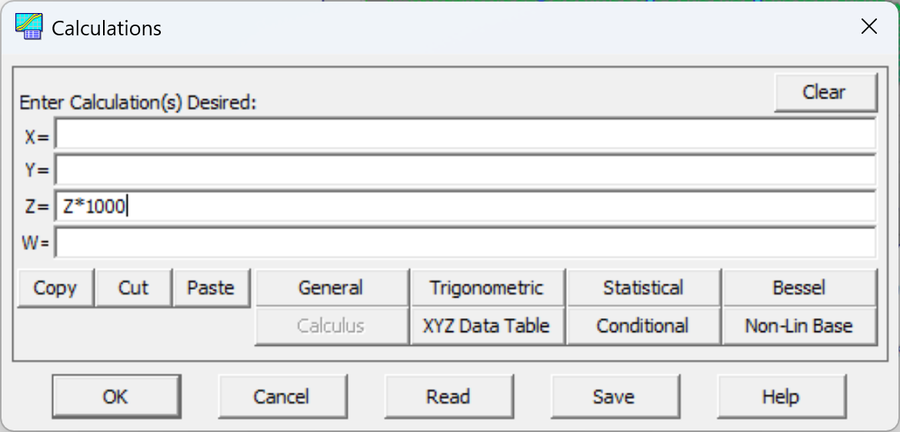
The Enter Calculation option in the Data menu is used for data transforms. A calculation consists of an X= expression, a Y= expression, a Z= expression, and a W= expression. Only one expression need be present in a calculation. You may enter any numeric calculation. All of the functions and constants available within TableCurve Studio can be accessed through the Function Insert feature. The X=, Y=, Z=, and W= prefixes are supplied automatically. When a calculation has cross references to X, Y, and Z, bear in mind that the X calculation is applied first, then the Y, then the Z, and finally the weight calculation.
Calculation Types
A calculation can be used to change the existing variable. As examples, the expression X=X*2.54 converts X-values in inches to centimeters and the expression Y=(4/3)*PI*Y^3 converts Y-values representing a radius to a volume. A calculation can also be used to calculate one variable based upon another. As examples, the expression Z=Z+1.232+2.323*X+3.3433*Y increments the original Z variable by the value of a function of X,Y. The expression W=1/Z assigns weights equal to the inverse of the Z-values.
Copy, Cut, Paste
Use these buttons to paste in expressions from the clipboard, or to modify the text across the various fields.
Read
Calculations that have been saved to disk are read by using the Read button. It is a good idea to save a calculation that will likely be used on future data sets. Calculation files are binary files with.CLC extensions. They can be created only within the program.
Save
The calculation active at the close of any given session is not automatically saved across sessions. You must explicitly save a calculation to disk using the Save button in order to have it available in a future session. Calculation files have.CLC extensions.
Validation
The calculation will be validated when you exit the Calculation entry screen. If there is an error in any of the expressions, an error message will report a specific parser or math error and you will be shown where within the expression the evaluation failed. The cursor will also be placed at this position. Note that a calculation must be defined at the Xmean, Ymean, and/or Zmean of the data table or at values of 1.0 if the data table is empty. Calculations are compiled for a very rapid processing with large data sets.
Option to Apply
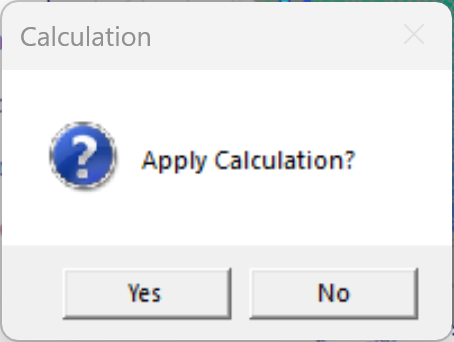
When you click OK, TableCurve Studio asks Apply Calculation? Click Yes to apply the calculation to the current data and inspect the result in the Accept or Undo Calculation window. Click No to keep the calculation without applying it; you can apply it later with Apply to Data Table in the Data menu.
An accepted calculation is added to the notebook as a Calculation item under the data item it transforms. The original data is never changed: the Calculation item stores the expressions and recomputes the transformed data each time you select it.
For 2D (XY) Data
For a 2D (XY) fit, a calculation consists of just an X=, Y=, and W= expression -- there is no Z= expression. The X calculation is applied first, then Y, then the weight calculation. If Background Thread Fitting is active, fitting starts in the background as soon as the calculation is applied, while you're still inspecting the result in the TableCurve 2D Graph.