Import Clipboard Matrix
The Import Clipboard Matrix option is one of the special import options included in the Import Special menu list in the File menu.
Columnar vs. Matrix Format
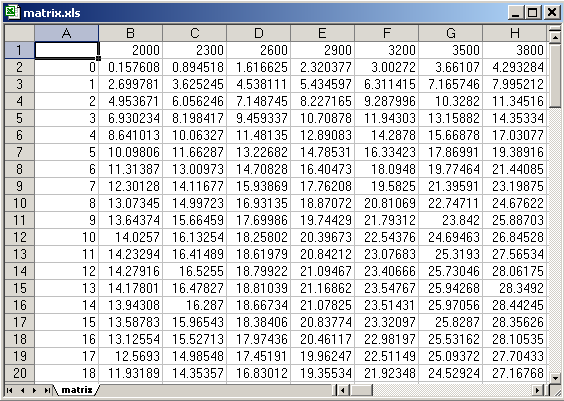
This option is used only for importing a single XYZ data set stored in a standard matrix format. It is not used for columns of numeric data. You must use the Import Clipboard option when the clipboard contains columns of numeric information.
For TableCurve Studio to successfully import matrix data, it must be in a WK1 or WK3 binary format. This automatically happens when you copy the desired cells from an Excel, SigmaPlot, Lotus, etc. worksheet to the clipboard.
The X values must be across the columns in the first row copied and the Y values must be in the first column copied. The initial cell in the block should be empty. The Z values must be present in the matrix formed by the X and Y values. Do not use this option when there are missing values in the matrix or when any strings are present in the copied block.
Adding Clipboard Contents to Notebook
TableCurve Studio first saves the contents of the clipboard to a disk file. This file is then automatically added to the current notebook. The XYZ data set is then specified in the same manner as would follow the manual addition of a data source using the Import Data Source option.
The XYZ data must be saved to disk as an ASCII file (with a PRN default extension) in order to be added to the notebook.
Specifying XYZ Data Sets
Once the clipboard data has been added to the notebook as a data source, simply expand the node to specify the XYZ data.