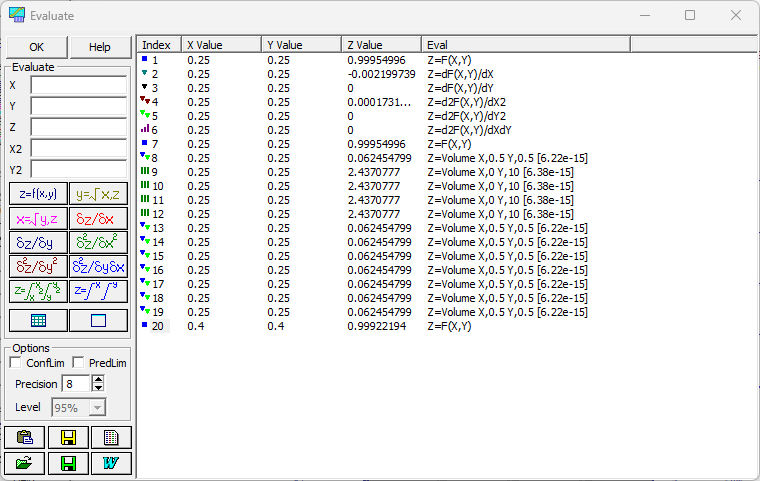
Evaluation Procedure
The Evaluation procedure offers extensive numerical evaluation of parametric and non-parametric models. Use this option to find function evaluations, roots, derivatives and cumulative areas. This option's Generate feature enables the creation of any data table based upon the equation being evaluated.
Single Data Input
This aspect of the Evaluation requires individual data input from the keyboard. Enter a value in the X, Y, X2, Y2 and Z field and then click on the desired function operation.
The following operations are available:
 Evaluate the function at X,Y.
 Find all roots (X-values) at Y,Z.
 Find all roots (Y-values) at X,Z.
 Evaluate the first partial derivative at X.
 Evaluate the first partial derivative at Y.
 Evaluate the second partial derivative at X.
 Evaluate the second partial derivative at Y.
 Evaluate the partial derivative at X, Y.
 Evaluate the Volume from the lower bound of the data range (or function
plot range) to X, Y.
Evaluate the Volume from the lower bound of the data range (or function
plot range) to X, Y.
 Evaluate the cumulative Volume from X to X2 and Y to Y2.
The result is placed in the Evaluation Table. This table is a sorted list window that accumulates all manually or automatically generated data. The table lists the data element, the X value, the Y value, the Z value and the type of function operation that produced the data.
The list can be sorted by X value, Y-value, Z-value, evaluation type, and by magnitude of the confidence interval. Click on the desired table header to initiate a sort. A second click on the same heading reverses the order of the sort.
Precision
The number of significant figures used in the table can be set anywhere from 3 to 15 using the Precision option.
Confidence or Prediction Limits
If you are evaluating a Surface-Fit equation, you can also check the ConfLim or PredLim items. In these instances, the confidence or prediction limits will be computed for the surface at the X,Y, Z listed and these will be included in two additional columns. The initial will be that interval limit currently set in the Review. The Level drop down box allows any of the confidence levels to be set.
Volumes
The cumulative volume computations use a Gaussian Quadrature procedure. The precision attained is shown in brackets. A minimum fractional error of 1E-8 is sought.
Generate Table
 The Automatically
Generate Table Entries option is used to automatically create either the evaluation table or a
file from the function being evaluated. You have the option of generating the input values by specifying
the starting value, increment (or count), and ending values, or you can read the input values as a column
from any ASCII, Lotus, Excel, SigmaPlot, Quattro Pro, dBase, DIF, SPSS, or SYSTAT file. The computed values
can be Z=F(X,Y), X=Root(Y,Z), Y=Root(X,Z), Z=dF(X,Y)/dX, Z=dF(X,Y)/dY, Z=d2F(X,Y)/dX2, Z=d2F(X,Y)/dY2,
Z=d2F(X,Y)/dXdY, Z=Volume(Xmin,X,Ymin,Y), Z=Volume(X,X2,Y,Y2). You can use this option to generate a file
or to fill the evaluation table, up to a limit of 65536 entries.
The Automatically
Generate Table Entries option is used to automatically create either the evaluation table or a
file from the function being evaluated. You have the option of generating the input values by specifying
the starting value, increment (or count), and ending values, or you can read the input values as a column
from any ASCII, Lotus, Excel, SigmaPlot, Quattro Pro, dBase, DIF, SPSS, or SYSTAT file. The computed values
can be Z=F(X,Y), X=Root(Y,Z), Y=Root(X,Z), Z=dF(X,Y)/dX, Z=dF(X,Y)/dY, Z=d2F(X,Y)/dX2, Z=d2F(X,Y)/dY2,
Z=d2F(X,Y)/dXdY, Z=Volume(Xmin,X,Ymin,Y), Z=Volume(X,X2,Y,Y2). You can use this option to generate a file
or to fill the evaluation table, up to a limit of 65536 entries.
Note that a Windows sorted list is quite slow when a large number of entries are being generated. In such an instance, it may be advantageous to generate the data directly to file.
Clearing the Evaluation Table
 To clear the
contents of the Evaluation table, use the Clear All Table Entries
button in the button panel.
To clear the
contents of the Evaluation table, use the Clear All Table Entries
button in the button panel.
Saving the Evaluation Table Data
 To save only
the X, Y and Z columns of the Evaluation table, use the Save Data to Disk
button. You can save the data to an ASCII file, to WK1, WK3, Excel 95, or Excel 97/2000/XP spreadsheet
files, to an SPSS SAV file, or to a SYSTAT SYS file. The ASCII files are written to 17 digits of precision.
The binary formats offer 15 digit precision except for the WK3, which offers 19 digits. These files can
be subsequently imported into TableCurve Studio's data table.
To save only
the X, Y and Z columns of the Evaluation table, use the Save Data to Disk
button. You can save the data to an ASCII file, to WK1, WK3, Excel 95, or Excel 97/2000/XP spreadsheet
files, to an SPSS SAV file, or to a SYSTAT SYS file. The ASCII files are written to 17 digits of precision.
The binary formats offer 15 digit precision except for the WK3, which offers 19 digits. These files can
be subsequently imported into TableCurve Studio's data table.
Copying the Evaluation Table Data to the Clipboard
 To copy only
the X, Y and Z columns of the Evaluation table to the Windows clipboard, use the Copy
Data to Clipboard button. This copies the XYZ data as 17 digit precision space-delimited ASCII
text, in a 15 digit precision WK1 format, and in a full 19 digit precision WK3 format.
To copy only
the X, Y and Z columns of the Evaluation table to the Windows clipboard, use the Copy
Data to Clipboard button. This copies the XYZ data as 17 digit precision space-delimited ASCII
text, in a 15 digit precision WK1 format, and in a full 19 digit precision WK3 format.
Listing/Printing the Evaluation Table
 The List
Data option places the evaluation table in a TableCurve
Studio text window that can be printed and edited.
The List
Data option places the evaluation table in a TableCurve
Studio text window that can be printed and edited.
Saving an Evaluation Sequence
 An evaluation
sequence can be saved to disk for re-application to any new model or equation. Use the Save
Evaluation Sequence to Disk button to save an EVS (evaluation sequence file). These are binary
files that can only be created from within TableCurve Studio.
An evaluation
sequence can be saved to disk for re-application to any new model or equation. Use the Save
Evaluation Sequence to Disk button to save an EVS (evaluation sequence file). These are binary
files that can only be created from within TableCurve Studio.
When the Evaluation is closed, you will be asked if you want to save an unsaved evaluation sequence only if manual entries have been made. This query is not made for automatically generated tables.
Importing an Evaluation Sequence
 An EVS file
can be imported using the Import Evaluation Sequence from Disk
button. When a sequence is imported, the existing entries in the table are cleared. If manual entries
have been made, you will be presented an option to first save the existing evaluation sequence.
An EVS file
can be imported using the Import Evaluation Sequence from Disk
button. When a sequence is imported, the existing entries in the table are cleared. If manual entries
have been made, you will be presented an option to first save the existing evaluation sequence.
MS Word/RTF Export
 The
MS Word/RTF File Export option is used to save the current evaluation table to either a MS Word file
or a portable RTF (Rich Text Format) file.
The
MS Word/RTF File Export option is used to save the current evaluation table to either a MS Word file
or a portable RTF (Rich Text Format) file.
For 2D (XY) Data
For a 2D (XY) fit, Single Data Input takes just X, Y, or X2, and offers six operations instead of nine: evaluate the function at X; find all roots (X-values) at Y; evaluate the first and second derivative at X; evaluate the area from the lower bound of the data (or plot) range to X; and evaluate the area from X to X2. There is no partial-derivative-at-X,Y or volume-style operation, since a 2D fit has no second independent variable.
Generate Table's computed values are correspondingly Y=F(X), X=Root(Y), Y=dF(X)/dY, Y=d2F(X)/dY2, or Y=Area(Xmin,X), and the table or generated file is limited to 16384 entries (65536 for a 3D fit).