 ← Back|⌂ Home|R2N Software Home|R2N Software Support|
Code Generation
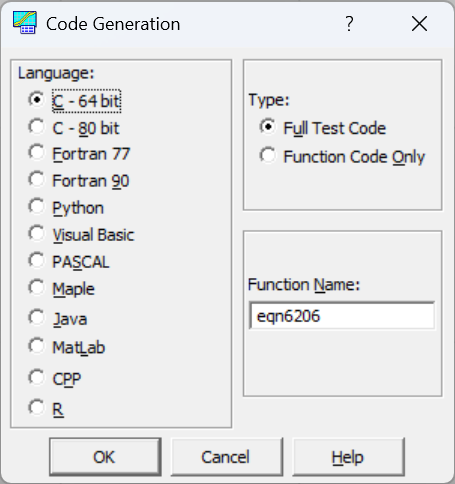
The Code Generation option in the File menu of the Curve-Fit Review and of the Surface-Fit Review writes program code for the current equation, so a fit found in TableCurve Studio can be evaluated directly in your own software.
Supported Languages
Code can be generated in the following languages for both curve-fit (2D) and surface-fit (3D) equations:
· C, 64-bit (double precision)
· C, 80-bit (long double precision)
· C++
· Fortran 77
· Fortran 90
· Java
· MATLAB
· Maple
· Pascal (80-bit extended precision)
· Python
· R
BASIC is also available for curve-fit (2D) equations.
Code Type and Function Name
You can generate only the function code, or full test code that also contains simple calling code to exercise the function. The Full Test Code option writes the function, any auxiliary functions the equation needs (such as the error function or the Chebyshev or Fourier series evaluators), and a short test program. The Function Code Only option omits the test code.
You must also specify the Function Name for the function, subroutine, or procedure. After the file is written, the code is shown in the Generated Code Display.
Precision
The C (64-bit) option and all other languages use double precision (64-bit) variables and write the coefficients to 15-16 significant digits. The C (80-bit) and Pascal options use 80-bit extended precision (long double in C, Extended in Pascal) and write the coefficients to 19 significant digits.
To keep the full 80 bits, your compiler must implement them. GCC, Clang, and MinGW treat C long double as 80-bit on x86 and x64 systems, while Microsoft Visual C++ treats it as a 64-bit double. Free Pascal and Delphi keep Extended as 80-bit for 32-bit Windows programs but reduce it to a 64-bit double in 64-bit Windows programs. Check your compiler's documentation if 80-bit precision matters for your application.
Python and R
The Python and R code uses only each language's built-in mathematics. No additional libraries or packages are needed.
MATLAB Considerations
For MATLAB, the Full Test Code and Function Code Only options are identical, since the m-file function can be tested directly from the MATLAB environment. Unless the generated code is to be a subsidiary function in another m-file, give the function and the m-file the same name. MATLAB requires the m-file and the function to have the same name for the function to be available within the MATLAB environment.
C++ and Java Classes
The C++ and Java options produce classes with built-in evaluation and root-finding member functions. If the classes are not suitable in their present form, you can modify them by editing the template file for the language, as described under Customizing the Generated Code below.
User-Defined Functions
Code is not generated for user-defined functions, but TableCurve Studio writes the current UDF into the generated code as it appears in the program, to assist with the manual coding that is required. If your UDF uses a special function such as a Bessel function or one of the statistical functions, you will need to supply your own version of that function.
No Constraint Code
The generated code contains only the native mathematical computation. There are no conditional statements to manage undefined regions.
Using a Curve-Fit Equation in Excel
For curve-fit equations you can add the generated BASIC function to an Excel workbook as a VBA (Visual Basic for Applications) function. This produces a working formula for every TableCurve equation, including the Chebyshev and Fourier series equations, and the coefficients appear directly in the code rather than as cell references. No programming experience is needed.
· In TableCurve Studio, generate the code using BASIC and Function Code Only. For the Function Name, enter a name that cannot be read as a cell address, such as tc_eqn324. Excel treats a name like eqn324 as the cell in column EQN, row 324, so a formula using it will not work.
· If you also want the data in the workbook, create the Excel file with the Save Excel option.
· In Excel, press Alt+F11 to open the Visual Basic editor, choose Insert > Module, and paste the generated code into the new module. If the module begins with the line Option Explicit, delete that line.
· Use the function name in formulas anywhere in the workbook, for example =tc_eqn324(A1).
Place each equation in its own module. Every generated function includes its own helper functions, and two copies of the same helper in one module cause an "Ambiguous name detected" error. Full Test Code is not intended for Excel; it produces a Visual Basic form.
Customizing the Generated Code
Each language uses a template file with a .TCL extension, found in the TableCurve Studio program folder (for example C.TCL, CLDBL.TCL for 80-bit C, CPP.TCL, JAVA.TCL, PYTHON.TCL, and R.TCL). You can edit these files as you choose, but save a backup of the original first. The tokens where substitutions occur during code generation are clearly marked and must not be removed.