Excel Export
The Save Excel option in the File menu of the Surface-Fit Review writes the current surface fit to an Excel workbook (.xls).
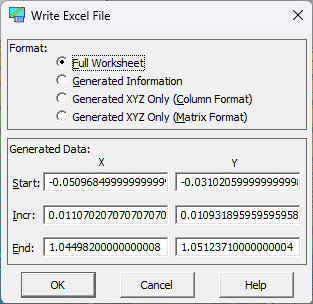
Format
Four formats are offered, from all of the surface-fit information down remember we have =to only the generated XYZ surface:
· Full Worksheet writes all available information: the fit parameters, the fit statistics, the original data with the predicted values and the confidence and prediction limits, and a generated section. The generated section contains X,Y values set by the Start, Incr, and End fields, with the predicted Z value and its confidence and prediction intervals.
· Generated Information writes only the generated columns, including the confidence and prediction limits.
· Generated XYZ Only (Column Format) writes only the X, Y, and Z values of the generated surface, in the first three columns.
· Generated XYZ Only (Matrix Format) writes the X values across the first row and the Y values down the first column, with the Z values filling the matrix. This is the layout Excel needs for a surface chart.
The confidence level used for the limits is the value currently set in the Intervals menu.
Generated Data
The Start, Incr, and End fields set the X and Y values at which the surface is evaluated. The initial values follow the current mesh counts of the surface graph, so by default the generated points are the same vertices drawn in the graph.
Worksheet Size Limits
An .xls workbook holds at most 65,536 rows and 256 columns. The generated section has one row per X,Y point, so a 250 x 250 mesh (62,500 points) is about the largest that fits in the column formats. The matrix format needs one column per X value, so it is limited to 255 X values. For finer meshes, reduce the mesh counts in the surface graph, or set a larger Incr, before saving.
Creating a Surface Chart in Excel
To chart the exported surface in Excel, save with Generated XYZ Only (Matrix Format), open the file, select the whole matrix, and choose Insert > Charts > Surface (3-D Surface). To control the number of color bands, right-click the vertical (Z) axis, choose Format Axis, and set the Major unit.
Using the Equation as an Excel Function
The Full Worksheet writes the equation as a single-line cell formula. To use the fitted equation as a function in any worksheet, generate BASIC code with Code Generation (Function Code Only) and add it to the workbook as a VBA module. This works for every equation, including the Chebyshev and Fourier series equations, and the coefficients appear directly in the code rather than as cell references. The Code Generation topic lists the steps.
For 2D (XY) Data
For a 2D (XY) fit, you also choose among three XLS file formats: Excel 2000/97, Excel 95, and Excel v4. Excel v4 always writes fixed columns whether or not that data is present; the newer formats write columns only for the data actually present, and use a column order and structure matching TableCurve 2D's automation export. Generated Information is renamed Generated XY Only, writing just the X,Y columns, and the initial X generation always produces a block of 100 points rather than following the surface graph's mesh counts.
The Full Worksheet option can also write the fitted equation directly into the worksheet as a live Excel formula -- no BASIC module needed. Omit writes no formula; Write Using A1 Cell Addressing writes it for specific cells; Write Using R1C1 Cell Addressing writes it with relative row-column addresses (used by the automation facility when multiple export streams share a sheet). No formula is generated for Chebyshev or Fourier Series equations, since they can't be expressed as a single-line formula, and for Excel 95 and Excel v4, no formula is generated for equations with more than 11 coefficients, due to a formula length limit in those Excel versions -- for those cases, use the BASIC module approach via Code Generation instead, which handles every equation including Chebyshev and Fourier Series.