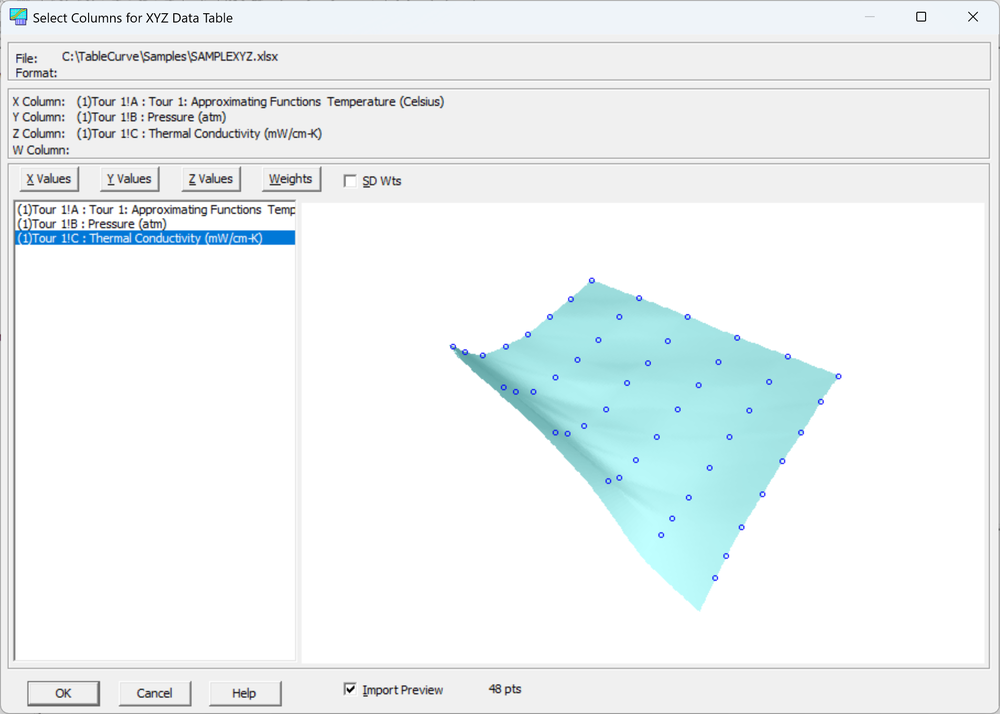
Column Selection
The multi-column ASCII, Excel, Lotus, Quattro Pro, SigmaPlot, dBase, SPSS, Systat, and multi-column DIF options use a common column selection procedure. This appears when specifying the X, Y, and Z columns manually in the Specify XYZ Data Item option.
· The first selection is automatically assigned to the X column, the second is assigned to the Y column, and the third is assigned to the Z column. Three sequential columns can be assigned in a single step by double clicking on the column intended for the X variable.
· A weights column can then be specified, or the X, Y, or Z columns respecified, by selecting the desired column and then clicking on the X, Y, Z, or Weights buttons.
· If the SD Wts box is checked, each weight value is assumed to consist of the standard deviation associated with multiple Z measurements at each particular X, Y pair. When this box is checked, the imported column must consist of SD values. The data table weights will consist of 1/SDē.
· To preview the data to be imported, the Import Preview button must be checked. The graphical preview is automatic. Graphs are shown once a valid X, Y, and Z have been selected. The number of valid points is shown just below the graph. The graph's format is fixed and animation is automatic.
For 2D (XY) Data
When the data source is specified as a 2D (XY) data item, the same column selection procedure is used with only an X Values and a Y Values button (no Z). The first selection is automatically assigned to the X column and the second to the Y column. If SD Wts is checked, each weight value is assumed to be the standard deviation associated with multiple Y measurements at each X value, and Error Bars become available in the curve-fit graphs. The graphical preview appears once a valid X and a valid Y have been selected.