 Surface-Fit
All Equations
Surface-Fit
All Equations Automated Fitting
In the Process menu, you may select from nine predefined built-in equation sets to fit:
 Surface-Fit
Polynomial Equations
Surface-Fit
Polynomial Equations
 Surface-Fit
Rational Equations
Surface-Fit
Rational Equations
 Surface-Fit
Poly/Ratl Equations
Surface-Fit
Poly/Ratl Equations
 Surface-Fit
Transition Functions
Surface-Fit
Transition Functions
 You may choose to fit user-defined equations only with the Surface-Fit
User Functions option.
You may choose to fit user-defined equations only with the Surface-Fit
User Functions option.
 You may also choose to fit your own custom equation set with the Surface-Fit
Custom Equation Set option.
You may also choose to fit your own custom equation set with the Surface-Fit
Custom Equation Set option.
 The current settings for the sort criteria and the various linear or non-linear fitting controls in the
Surface-Fit
Preferences option will be applied to the selected fit.
The current settings for the sort criteria and the various linear or non-linear fitting controls in the
Surface-Fit
Preferences option will be applied to the selected fit.
To assure that all XY polynomials are added to the list, the Keep Per Term Count Per Fn(Z) option in the Surface-Fit Preferences dialog should be set to at least 45. To assure all XY rationals are added, this count should be set to at least 68. In both cases, the Max Terms option should be set to 66, the coefficient maximum. It is impossible to add all Selective Subset equations.
Successfully fitted specialty linear equations (Chebyshev, Fourier, Cosine, Sigmoid series), and non-linear equations, including UDFs, are always added to the list, regardless of goodness of fit. Successfully fitted non-linear equations, including UDFs, are always added to the list, regardless of goodness of fit.
The processing of the TableCurve Studio data table is done in a highly automated single step. This may include up to 37,192 linear equations and up to 183 non-linear ones, fifteen of which may be user-defined. The automated fitting proceeds in the following sequence:
· 1. XY Polynomials
· 2. XY Rationals
· 3. Z Subset Equations
· 4. Ln(Z) Subset Equations
· 5. Inverse Z Subset Equations
· 6. Non-Linear Equations
· 7. User-Defined Functions.
Fit Progress
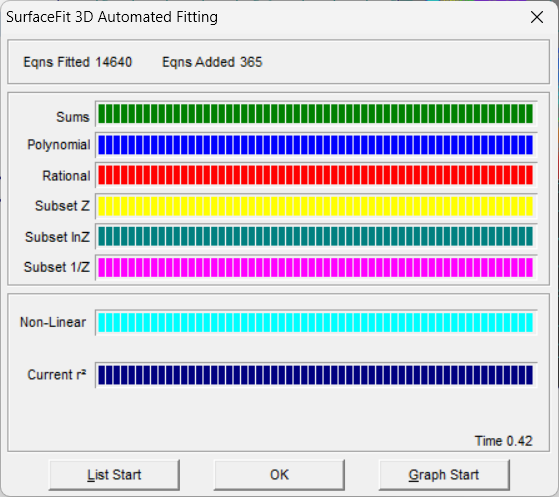
The first six bars reflect the progress of the linear fitting, the first displaying the progress in the computation of the various sums, the second in fitting the polynomials, the third in fitting the rationals, the fourth in fitting the Z selective subset equations, the fifth in fitting the logarithmic Z selective subset equations, and the sixth in fitting the inverse Z selective subset equations.
The last two bars reflect the progress of non-linear fitting, the first displaying the progress in the sequence of equations to be fitted and the second offers a graphical representation of the rē achieved. The rē bar is divided into five equal log sections.
If the Iteration Update box is checked, the rē bar and iteration and rē fields are updated with each iteration. Otherwise, the update occurs only when a fit is concluded. Note that this graphical update at each iteration can significantly slow the non-linear fitting. It is recommended that iteration update only be used when fitting is excruciatingly slow, and you wish to halt a number of non-promising non-linear fits prior to convergence.
Aborting Automated Fit
If you press the Cancel button during any portion of the automated fitting, the surface-fit is completely aborted.
Halting a Specific Non-Linear Fit
If Stop Current FitIf Stop Current Fit is pressed during the non-linear portion of the fitting, the equation currently being fit is stopped at the current iteration and added to the list of fitted equations in this non-converged condition. This halt is signaled and processed immediately.
Automatic Start of Review
If you do not respond to the message reporting the conclusion of the fit, the Review will be automatically started with the start option last used to begin the Review.
User-Initiated Background Fitting
Use the Fit in Background button to fit the TableCurve Studio equations in the background while working on another Windows task. You may also accomplish this by minimizing the main TableCurve Studio window. You may return to TableCurve Studio at anytime to inspect the progress of the fitting. When the fit is complete, an audible beep will signal the conclusion of the fit.
TableCurve Studio is able to do its fitting on a separate thread. This means you will not have any difficulty working with any other application while the TableCurve Studio fitting is underway.


